

Connect AI clients with MCP
The HostRepute MCP server lets an AI client, such as Claude Code, Cursor, VS Code or Codex, read your monitoring data and start checks for you. MCP (Model Context Protocol) is the open standard these clients use to call a server’s tools. The client signs in as you, so it sees the teams you belong to with the role you have in each.
- Server address:
https://app.hostrepute.com/mcp/hostrepute, over the Streamable HTTP transport (POSTonly). - Server: “HostRepute” version 1.1.0, with 37 tools, 17 resources and 5 prompts, listed in MCP tools, resources and prompts.
- Sign-in: OAuth, for clients that register themselves, or an MCP token you create in HostRepute.
Before you begin
Section titled “Before you begin”- Two-factor authentication or a passkey on your HostRepute account. Without one, HostRepute doesn’t create MCP tokens, doesn’t let a client authorize, and refuses every MCP request. Turn one on in Settings, then Sign-in & security; read Sign-in and security.
- The Developer role or higher in a team, for the tools that start checks (see Tools that use credits). Viewers can use every read-only tool.
- An MCP client that supports remote servers over HTTP.
Create an MCP token
Section titled “Create an MCP token”Skip this if your client signs in with OAuth (see Sign in with OAuth).
-
Open Settings, then AI clients (MCP).
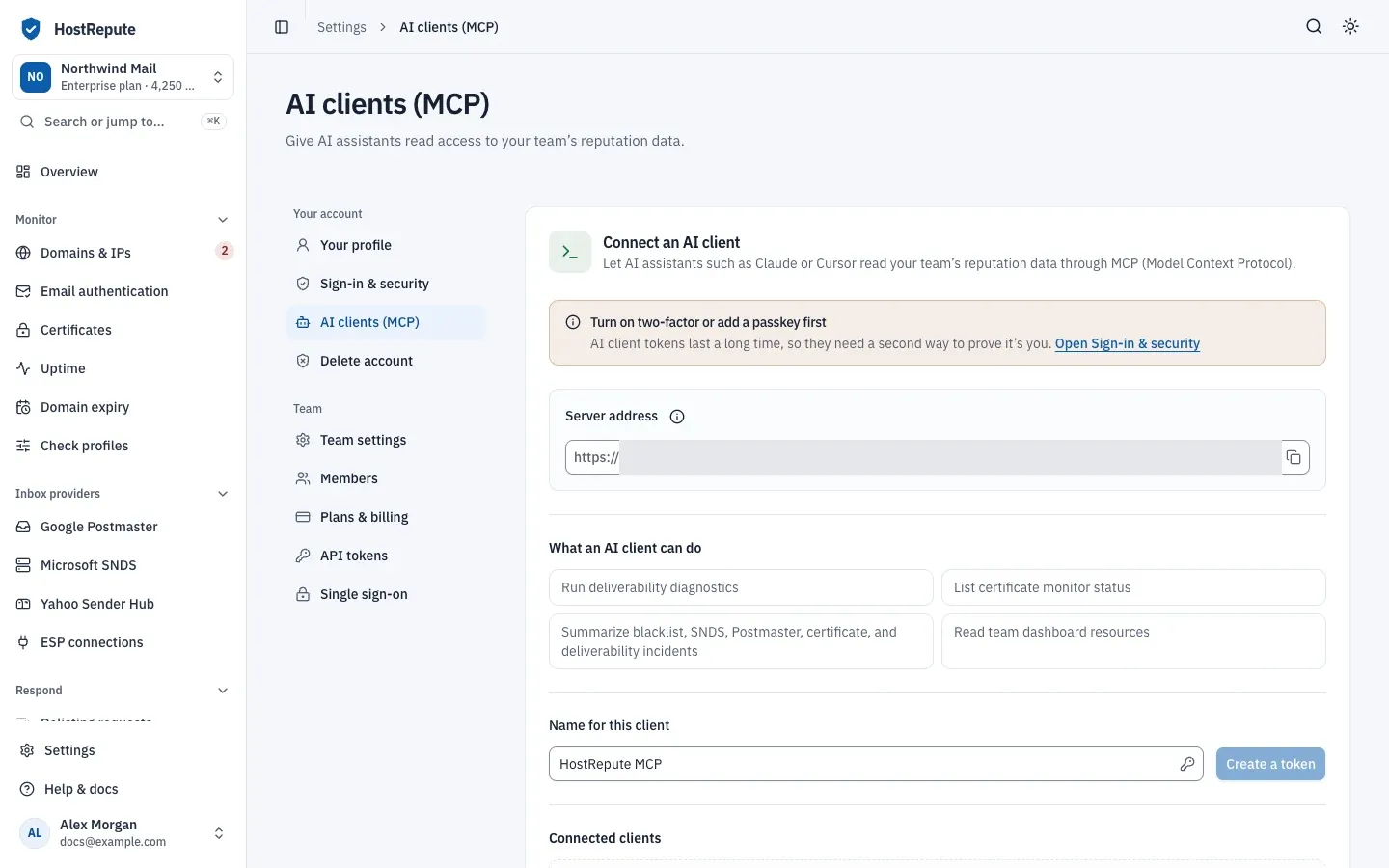
Until your account has two-factor authentication or a passkey, the page shows Turn on two-factor or add a passkey first and Create a token is greyed out.
-
Under Name for this client, name the client, for example “Claude Code on my laptop”, and choose Create a token. HostRepute may ask for your password first.
-
Copy the token. This token is only shown once. Keep it in your client’s configuration or a password manager.
The token appears under Connected clients with its Expires date. An MCP token is valid for one year. It belongs to you, not to a team: it reaches every team you’re a member of, with your role in each, and HostRepute revokes it if your account loses its last second factor.
Configure your client
Section titled “Configure your client”Each example uses the token from the HOSTREPUTE_MCP_TOKEN environment variable or a prompt, so the token isn’t
written into a file you might share. Syntax checked against each client’s documentation in October 2026.
claude mcp add --transport http hostrepute https://app.hostrepute.com/mcp/hostrepute \ --header "Authorization: Bearer $HOSTREPUTE_MCP_TOKEN"Run claude mcp list to see whether it connected
(Claude Code: Connect to tools via MCP, checked October 2026).
{ "mcpServers": { "hostrepute": { "url": "https://app.hostrepute.com/mcp/hostrepute", "headers": { "Authorization": "Bearer ${env:HOSTREPUTE_MCP_TOKEN}" } } }}Use .cursor/mcp.json in a project instead to limit the server to that project
(Cursor: Model Context Protocol, checked October 2026).
{ "inputs": [ { "type": "promptString", "id": "hostrepute-mcp-token", "description": "HostRepute MCP token", "password": true } ], "servers": { "hostrepute": { "type": "http", "url": "https://app.hostrepute.com/mcp/hostrepute", "headers": { "Authorization": "Bearer ${input:hostrepute-mcp-token}" } } }}VS Code asks for the token the first time the server starts and stores it (VS Code: MCP configuration reference, checked October 2026).
[mcp_servers.hostrepute]url = "https://app.hostrepute.com/mcp/hostrepute"bearer_token_env_var = "HOSTREPUTE_MCP_TOKEN"The Codex CLI, the IDE extension and the ChatGPT desktop app share this file (Codex: Model Context Protocol, checked October 2026).
Sign in with OAuth
Section titled “Sign in with OAuth”Clients that support MCP authorization with dynamic client registration can sign in without a token. HostRepute publishes the metadata they look for:
https://app.hostrepute.com/.well-known/oauth-protected-resourceandhttps://app.hostrepute.com/.well-known/oauth-authorization-server, which name the one scope,mcp:use.- Client registration at
POST https://app.hostrepute.com/oauth/register, authorization code with PKCE (S256only), and refresh tokens. - A request without a token gets
401with aWWW-Authenticateheader that points the client at the metadata.
-
Add the server without a token. In Claude Code:
Add the server and sign in claude mcp add --transport http hostrepute https://app.hostrepute.com/mcp/hostreputeclaude mcp login hostreputeIn Codex, add the
[mcp_servers.hostrepute]table with onlyurl, then runcodex mcp login hostrepute. Cursor signs in with OAuth and dynamic client registration for servers that require it, so leave outheadersthere. Each client’s documentation, linked above, describes its sign-in. -
Your browser opens HostRepute. Sign in if you aren’t already, check that the page names the client you’re connecting, and choose Authorize.
HostRepute accepts only http and https redirect addresses when a client registers. A client that registers a
custom-scheme address, such as myapp://callback, can’t sign in with OAuth; use an MCP token with it instead.
Tools that use credits
Section titled “Tools that use credits”These 4 tools start a blocklist check, a certificate check, an email authentication check or a manual scan, and use credits like the same checks in the API (see credit costs):
run-deliverability-check-toolstart-blacklist-check-toolstart-certificate-scan-toolstart-manual-reputation-scan-tool
They need the Developer, Manager, Admin or Owner role in the team they run in. For a Viewer, the tool answers with an
error and nothing is charged. Every other tool only reads. A tool that works on one team takes an optional team_ulid;
without it, the server uses the team you last opened in the portal.
Limits
Section titled “Limits”The server accepts 60 requests per minute per person, shared by all your AI clients. Over that, it answers 429. The
other limits are in Rate limits.
Check that it worked
Section titled “Check that it worked”- Your client lists the HostRepute server as connected and shows its tools.
- Ask the client which HostRepute teams you belong to. It calls
list-teams-tooland names them. - A token you created appears under Connected clients.
Troubleshooting
Section titled “Troubleshooting”403with “Two-factor authentication or a passkey is required to use HostRepute MCP.” Your account has neither. Turn one on in Settings, then Sign-in & security, then create a new token or sign in again.- The “Authorize” page answers
403with “Two-factor authentication or a passkey is required to authorize HostRepute MCP access.” Same cause and fix. - Enable two-factor authentication or add a passkey before creating MCP tokens. You tried to create a token without a second factor.
401from the server. The token is wrong, revoked or expired, or the header isn’tAuthorization: Bearer <token>. Turning off two-factor authentication while you have no passkey, or removing your last passkey, revokes every MCP token and OAuth sign-in.- “Your team role must be at least [developer] to use this MCP capability.” Your role in that team is Viewer. Ask an Owner or Admin to change your role.
- “No accessible team was found for this MCP request.” The
team_ulidisn’t a team you belong to. - The client can’t register with OAuth. It uses a custom-scheme redirect address. Configure it with an MCP token.
- The client only offers SSE. HostRepute serves Streamable HTTP only; pick the HTTP transport in the client.
Related
Section titled “Related”- MCP tools, resources and prompts
- Ask the AI assistant, HostRepute’s own assistant in the portal
- Sign-in and security
- Credit costs
- Build on HostRepute