

Invite members and set roles
Members are the people who can open a team, and each member has one role in it. This guide covers inviting people by email, changing a member’s role and removing members, then sets out team roles permissions: what an Owner, Admin, Manager, Developer and Viewer can do.
Before you begin
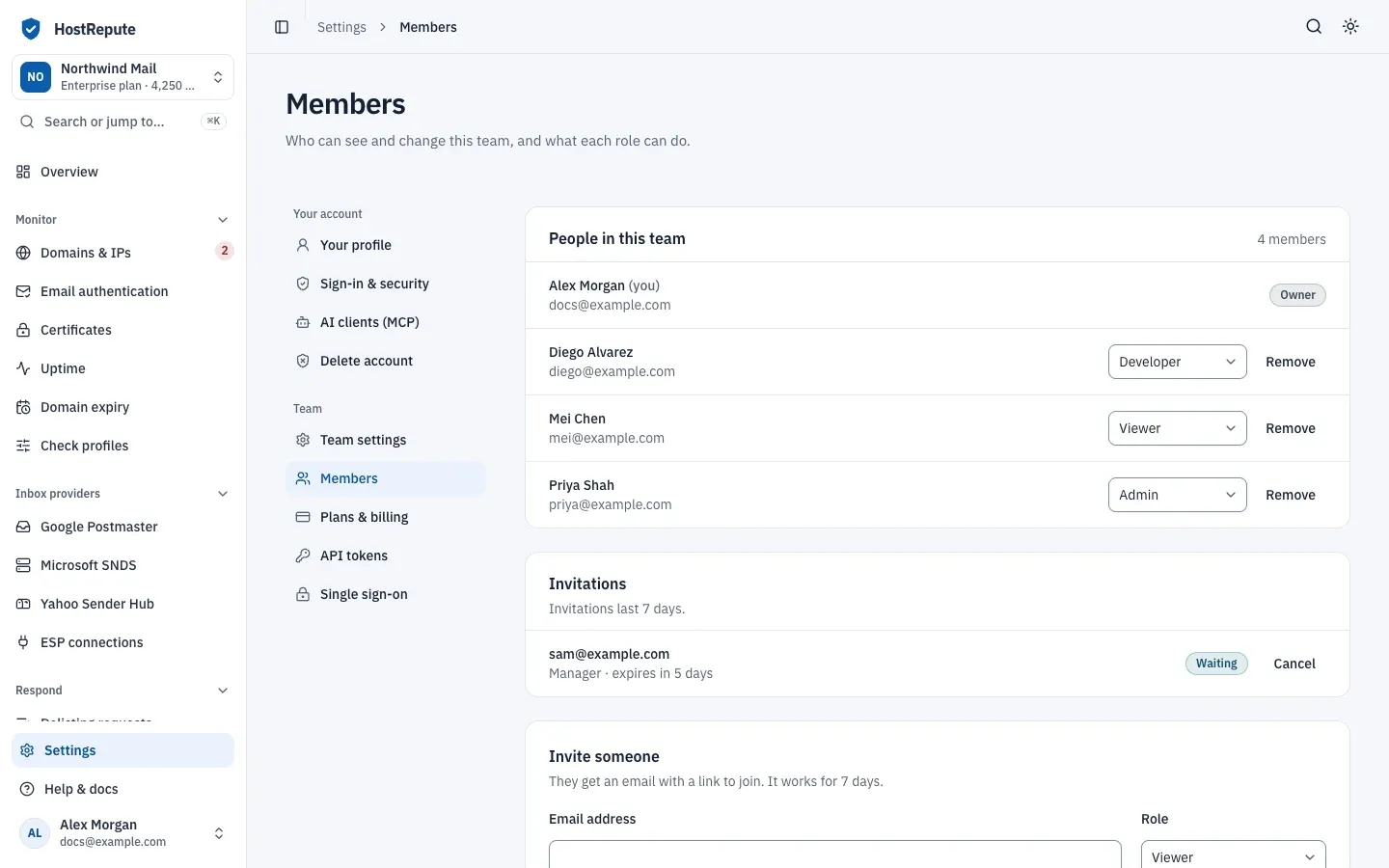
Section titled “Before you begin”- The Owner or an Admin to invite people, change roles and remove members. Everyone else sees People in this team and each member’s role, read-only. Only the Owner and Admins see pending invitations.
- The roles you can give. The Owner can give Admin, Manager, Developer or Viewer. An Admin can give Manager, Developer or Viewer. Nobody can give the Owner role: the person who created the team stays its Owner.
- The person’s email address. An invitation works only for an account with that address (capital letters don’t matter), so use the one they sign in with.
Invite someone
Section titled “Invite someone”-
Open Settings, then Members. Invite a teammate in the command palette opens the same page.
-
Under Invite someone, enter their Email address.
-
Pick a Role. It starts at Viewer, and the line under the field sums up the role. What each role can do has the full rights.
-
Choose Send invitation. HostRepute emails them “You’ve been invited to join” followed by the team’s name, with a link that works for 7 days. The invitation appears under Invitations as Waiting, with its role and when it expires.
Each member can send up to 10 invitations a minute in a team. An invitation that expires drops off the list; send a new one to the same address when you need to.
What the invited person does
Section titled “What the invited person does”- They open the link in the email. If they’re already signed in with the invited address, they join the team at once and its Overview opens.
- If they’re signed out and already have a HostRepute account, they’re asked to log in with the invited address. If they have no account, they’re asked to create one with it. An account created with the sign-up form also gets a team of its own.
- As soon as they sign in or sign up with that address, by password, passkey, Google, GitHub, Yahoo, Microsoft or single sign-on, they join your team with the role you chose. If they’re signed in with a different address, the link tells them so, and they must sign in with the invited one.
Change a member’s role
Section titled “Change a member’s role”-
In Settings, then Members, find the member under People in this team.
-
Open the role picker next to their name and choose the new role. The change is saved straight away.
You can’t change your own role or the Owner’s. An Admin sees other Admins’ roles as a label without a picker, because only the Owner can change an Admin’s role.
Remove a member
Section titled “Remove a member”-
Choose Remove next to the member.
-
The dialog says that they lose access to the team right away and that you can invite them again later. Choose Remove from team, or Keep them to stop.
Removing someone doesn’t delete their HostRepute account or their place in other teams, and everything they set up in this team stays, because it belongs to the team. The Owner can’t be removed, and an Admin can be removed only by the Owner.
Cancel an invitation
Section titled “Cancel an invitation”Under Invitations, choose Cancel next to the invitation, then Cancel invitation. The link in the email stops working.
There’s no button to send an invitation email again. To resend one, cancel the invitation and invite the same address again.
What each role can do
Section titled “What each role can do”| Role | What they can do |
|---|---|
| Owner | Everything an Admin can do, plus billing (plan, credits and payment method), single sign-on, and deleting the team. A team can be deleted only by an owner who belongs to another team, and only while it has no active or pending subscription. The owner can't be removed from the team, and can give the Admin, Manager, Developer and Viewer roles. |
| Admin | Everything a Developer can do, plus changing the team's name and logo and how often its domains and IPs are checked, inviting members, seeing pending invitations, and changing the role of or removing Managers, Developers and Viewers. An Admin can give the Manager, Developer and Viewer roles; only the Owner can change or remove another Admin. |
| Manager | The same rights as Developer. HostRepute gives the Manager role no extra rights today. |
| Developer | Everything a Viewer can see, plus adding, changing and deleting the team's monitoring (domains and IPs, check profiles, certificates, uptime and domain expiry monitors, alert channels, delivery hours, scheduled reports, status pages, delisting requests and inbox provider connections), running manual scans, one-off checks, campaign preflights and AI assistant requests, and creating and revoking API tokens. |
| Viewer | Sees the team's domains and IPs, results, monitors, settings, members and API tokens, but can't change anything. |
- Manager and Developer are the same today. HostRepute gives the Manager role no rights beyond a Developer’s.
- The picker’s one-line summaries are short. The line under the role picker is the portal’s summary of a role; the table above is what HostRepute checks when someone acts.
- Roles are per team. You can be the Owner of one team and a Viewer in another.
- Single sign-on members. People who join through single sign-on get the connection’s default role: Manager, Developer or Viewer.
Check that it worked
Section titled “Check that it worked”- A new invitation is listed under Invitations as Waiting. Once accepted, it leaves that list and the person appears under People in this team with the role you chose.
- After a role change, the member’s picker shows the new role.
- A removed member no longer appears in the list.
Troubleshooting
Section titled “Troubleshooting”- “This customer is already a team member.” That address already belongs to a member. Change their role instead.
- “A pending invitation already exists for this email.” Cancel the existing invitation, then invite again.
- “Please wait … seconds before sending another invitation.” You sent 10 invitations in the last minute. Wait the time shown.
- The invited person sees “This invitation has expired.” More than 7 days have passed. Send a new invitation.
- The invited person sees “This invitation link is invalid.” The invitation was cancelled. Send a new one if you still want them in the team.
- The invited person sees “This invitation was sent to a different email address. Please log in with the correct account.” They’re signed in with another address. They log out and sign in with the invited one.
- The invited person sees “You are already a member of this team.” or “This invitation has already been accepted.” They’re already in. They choose the team in the team menu at the top of the sidebar.
- There’s no invite form, role picker or Remove button. Your role is Manager, Developer or Viewer, or the member is the Owner or you.
- An Admin’s attempt to remove another Admin is refused. Only the Owner can remove or change an Admin.
- You want to leave the team. Members can’t remove themselves. Ask the Owner or an Admin to remove you.
Invitation limits and timers are in Limits and defaults.