

Check profiles and blocklists
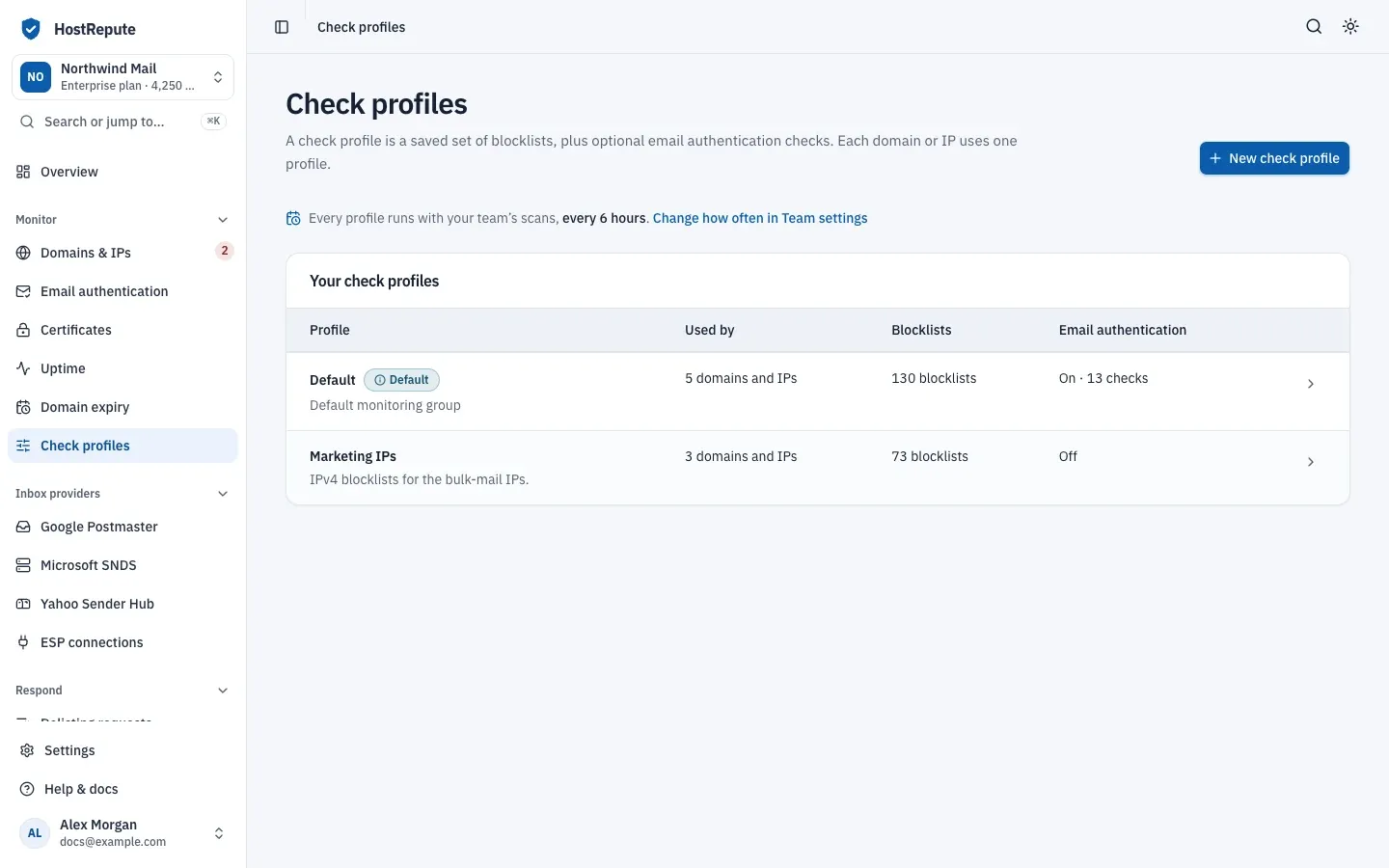
A check profile is the DNSBL list a domain or IP is scanned on: a saved set of blocklists, plus optional email authentication checks. A DNSBL (DNS-based blocklist) is a list of IP addresses or domains reported for spam or abuse. Each domain or IP uses one profile, and one profile can serve as many domains and IPs as you like. This guide covers creating a profile, choosing its blocklists and checks, and putting it to use.
Before you begin
Section titled “Before you begin”- The Developer role or higher to create, change or delete profiles. Other members can open a profile, read-only: “You can view this profile, but your role can’t change it.”
- The Default profile. Every new team starts with a profile named Default that holds every free blocklist. Setup can add lists to it or create a new default profile, and you can edit it like any other.
- For email authentication with every scan: a plan or the trial. How many profiles can have it on depends on the plan:
| Plan | Check profiles with email authentication |
|---|---|
| Professional | 5 |
| Business | 20 |
| Enterprise | 75 |
There’s no limit on the number of check profiles. Plans and limits lists every plan limit.
Create a check profile
Section titled “Create a check profile”-
Open Check profiles and choose New check profile.
-
In Name and use, enter a Name, for example “Mail servers” or “Marketing domains”, and an optional Description. Tick Use this profile for new domains and IPs to make it the team’s default profile; the previous default stops being the default.
-
In Blocklists, choose the lists to check. A new profile starts with every free list selected. The lists are grouped by type, as described in Pick blocklists by type; search by name, host or type, use Select category and Clear category for one type, or Select all free lists and Clear all for all of them. The information icon next to each list says what it checks.
-
Optional: in Email authentication, tick Check email authentication with every scan. Every check runs unless you choose Choose specific checks and tick the ones you want, grouped For domains and For IP addresses. A meter shows how many of your plan’s profiles with email authentication are in use.
-
When it runs shows how often the team’s scans run. A profile has no schedule of its own: every profile runs with the team’s scans, which you set in
Settings, then Team settings, then How often we check -
Choose Create check profile. The profile’s page opens.
These limits apply on every plan:
| Setting | Default | How to change |
|---|---|---|
| Name | 255 characters | Fixed |
| Description | 1,000 characters | Fixed |
| What a profile checks | At least one blocklist, or email authentication checks turned on | Fixed |
Pick blocklists by type
Section titled “Pick blocklists by type”The profile editor groups the blocklists like this:
| Group | What it holds |
|---|---|
| IPv4 blocklists | IPv4 addresses known for spam. Used for IP addresses. |
| IPv6 blocklists | IPv6 addresses known for spam. Used for IP addresses. |
| Domain blocklists | Domains found in spam, for example in links. Used for domains. |
| Protective DNS | Security resolvers that block domains linked to malware or phishing. |
| Premium lists | Reputation feeds such as PhishTank and Microsoft SNDS. Any list in this or another group that’s marked premium is greyed out and can’t be added. |
| Other | Lists that don’t fit the groups above. |
Every domain or IP is looked up on every list in its profile, so match the lists to what the profile watches: a profile for your sending IPs can hold only IPv4 lists, and one for your domains the domain lists and protective DNS. A premium list that is already in a profile stays there when you save it. Blocklists HostRepute checks lists every blocklist with its type, its score weight and its removal page.
Put a profile to use
Section titled “Put a profile to use”- Assign it when you add a domain or IP, or later in the domain or IP’s settings; see Add and manage domains and IPs. The change applies from the next scan. The add dialog starts with the first profile in alphabetical order, whichever one is the default, so pick the profile you want there.
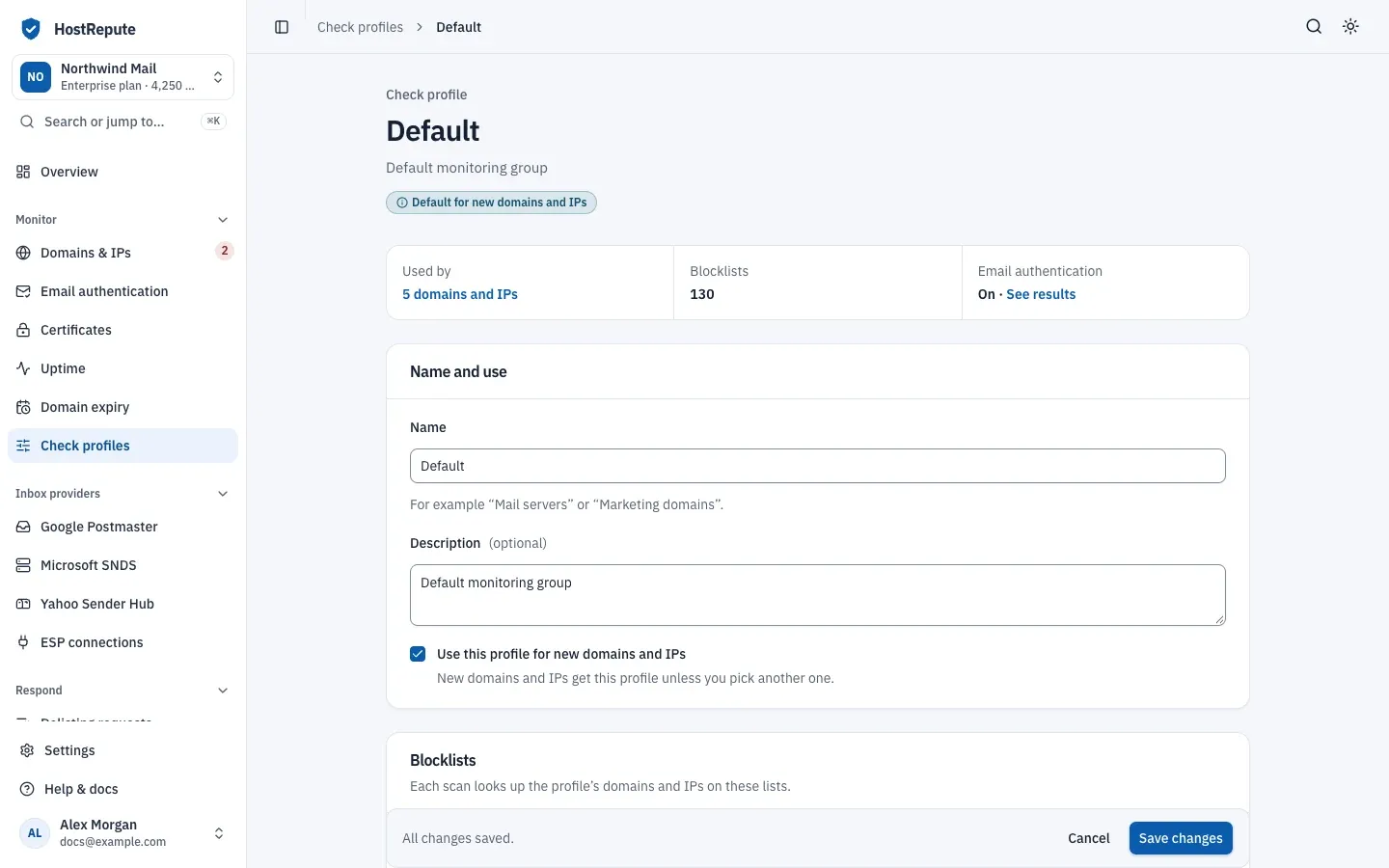
- The default profile carries the Default badge in the list. It’s the profile a blocklist check started through the API uses when the request names none.
- See who uses it. Used by links to Domains & IPs, filtered to that profile.
- Find its ID. Profile ID (for the API) on the profile’s page is the UUID the API needs. In
the API, which you call with a team API token, check profiles live under
/api/v1/data-source-groups.
Change or delete a check profile
Section titled “Change or delete a check profile”-
Open the profile in Check profiles, change what you need and choose Save changes. The next scan of each of its domains and IPs uses the new settings.
-
To delete it, first move every domain or IP that uses it to another profile. Until then, the page shows Delete this profile with the number of domains and IPs still using it.
-
When no domain or IP uses it, choose Delete profile at the bottom of the page and confirm. The profile and its blocklist and email authentication settings are removed for good.
Check that it worked
Section titled “Check that it worked”- The profile appears in Check profiles with its number of blocklists, and Email authentication reads Off or On with its number of checks.
- After the next scheduled scan, a domain or IP that uses it shows a scan whose Check profile is this profile, with the blocklists you picked under Blocklist results.
Troubleshooting
Section titled “Troubleshooting”- “Choose at least one blocklist, or turn on email authentication checks.” A profile needs one or the other to be saved. To be scanned, it needs at least one blocklist.
- Every scan of its domains and IPs ends as Scan failed. The profile has no blocklists, for example because it was created through the API or only runs email authentication checks. Add blocklists, or move those domains and IPs to another profile. While the scans fail, the profile’s email authentication checks don’t run on schedule either.
- A list is greyed out: “Premium list. It can’t be added from the portal.” Premium lists can’t be added to a profile from the portal.
- Check email authentication with every scan is greyed out: “Checking email authentication with every scan is part of paid plans.” The team has no plan: its trial ended or its plan was cancelled. A one-off check from Email authentication still works, for credits.
- Saving says your plan’s profiles with email authentication are all in use. Turn it off in another profile, or move to a plan with more.
- Email authentication turned itself off in a profile. The team had more profiles with email authentication than its plan allows, so once a day HostRepute turns it off in the ones above the limit: the newest, unless you chose which to keep when the plan changed. It stays off until you turn it on again.
- The profile can’t be deleted. Domains and IPs still use it. Move them to another profile first.
- No check profiles yet. The team has no profile. Choose New check profile; setup usually creates one for you.