

Monitor uptime
Uptime monitoring in HostRepute checks that your website, an API health address or a mail server port answers, and answers fast enough. Each uptime check runs from HostRepute’s servers at your plan’s interval. When it fails a set number of times in a row, HostRepute opens an outage and alerts your alert channels; when it answers again, the outage ends and you get a recovery alert.
Before you begin
Section titled “Before you begin”- Room on your plan. Your plan sets how many uptime checks you can keep active, how often they run, and how long their history is kept. Compare them in Plans and limits.
- The Developer role or higher to add, change, check and delete uptime checks. Viewers can see every result.
- A public address. HostRepute checks only addresses on the internet; private, local and test addresses are refused.
Add an uptime check
Section titled “Add an uptime check”-
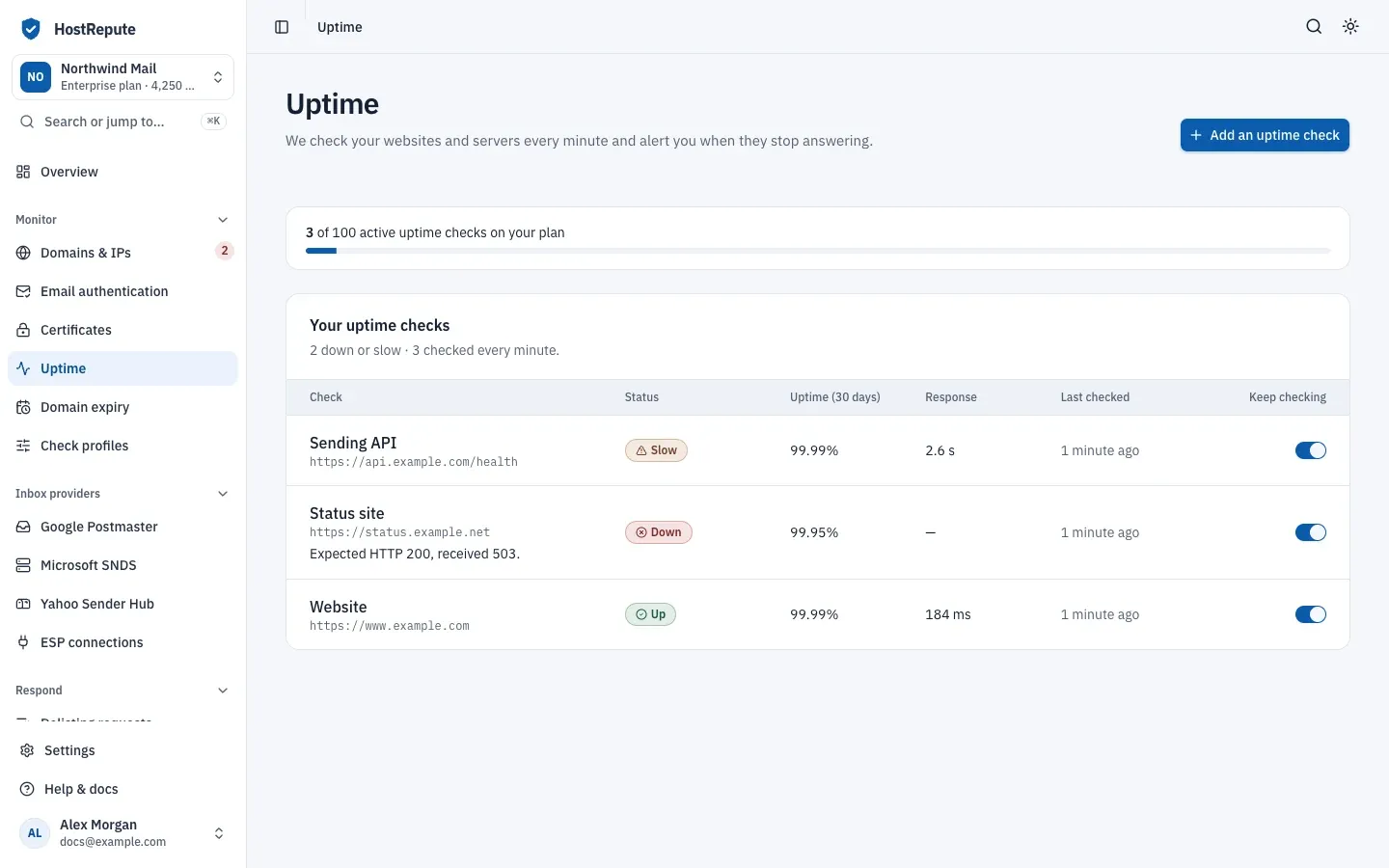
Open Monitor, then Uptime and choose Add an uptime check. The button is greyed out when your plan’s limit is reached.
-
Enter a Name. Alerts and status pages show it.
-
Choose What to check:
- Website or API (HTTP or HTTPS): enter the full Address, for example
https://example.com/health. HostRepute sends aGETrequest with the user agentHostRepute-Uptime/1.0. Any 2xx or 3xx answer counts as up, and redirects aren’t followed. - Server port (TCP): enter the Server, a name like
smtp.example.comor an IP address, and the Port. The check passes when the connection opens.
- Website or API (HTTP or HTTPS): enter the full Address, for example
-
Leave Keep checking it on.
-
Open More options to change how a check is judged:
- Give up after (seconds): no answer by then counts as down. From 1 to 15; the default is 5.
- Slow after (milliseconds): an answer that takes at least this long counts as slow. The default is 2,000, and it must be lower than the timeout.
- Alert after this many failed checks in a row: from 1 to 5; the default is 2. Two or more avoids alerts for a single dropped request.
- For a website or API, an optional Expected status code: then only that code counts as up, for example 200.
- For a website or API, optional Text on the page (optional), with Must contain it or Must not contain it. The match is exact and case-sensitive, and HostRepute reads the first 256 KB of the page.
- Show on status pages as: link the check to one of your domains or IPs so status pages show its uptime. Leave it on Not linked otherwise.
-
Choose Add uptime check. The check’s page opens, and its first check runs within a few minutes.
How a check is judged
Section titled “How a check is judged”Every minute, HostRepute runs every uptime check whose interval has passed. Each run ends with one of these results:
| Status | Meaning |
|---|---|
| Not checked yet | No uptime check has finished yet. |
| Up | The endpoint answered as expected (an HTTP check wants the status you set, or any 2xx or 3xx, and the keyword when you set one) faster than Slow after, 2,000 ms by default. |
| Slow | It answered as expected but took at least the Slow after time. Like down, it counts toward the failed checks in a row and opens an outage; public status pages call it Degraded. |
| Down | It couldn't be reached, timed out, returned an unexpected status, or failed the keyword check, for the set number of checks in a row (2 by default). While confirming, it's rechecked after 45 seconds. |
| Paused | Checks are turned off; it keeps its last result. |
- A website or API is down when it can’t be reached, doesn’t answer within the timeout, returns a status code you didn’t expect, or fails the keyword check. A server port is down when the connection doesn’t open in time.
- An answer that is otherwise fine but takes at least the slow threshold is slow. Slow counts as a failed check, the same as down.
- While a failure is being confirmed, the status stays as it was and HostRepute checks again 45 seconds or more later, instead of waiting for the plan’s interval. When the failures in a row reach Alert after this many failed checks in a row, the status changes to Down or Slow.
- One check that comes back up ends the failure at once.
Outages and alerts
Section titled “Outages and alerts”A confirmed Down or Slow period is an outage. It starts at the first failed check of the run, and it ends at the first check that comes back up.
| Status | Meaning |
|---|---|
| Down | A confirmed outage: the endpoint was down for the set number of checks in a row. It starts at the first failed check. |
| Slow | A confirmed slow period. An outage that turns from slow to down, or back, changes its badge but stays one outage. |
| Ongoing | The outage hasn't ended. It ends when a check comes back up, and then shows how long it lasted. |
HostRepute sends two alerts per outage, to every active
alert channel: one when the outage is confirmed and one when it
ends. Webhook channels receive them as uptime.monitor_down and uptime.monitor_recovered
(webhook events). A confirmed slow period also sends uptime.monitor_down, with the
status in the payload. An outage that turns from slow to down, or back, is still one outage and doesn’t alert again.
Delivery hours apply; a team without any active alert channel gets these alerts by email
to its Owner.
Read an uptime check’s page
Section titled “Read an uptime check’s page”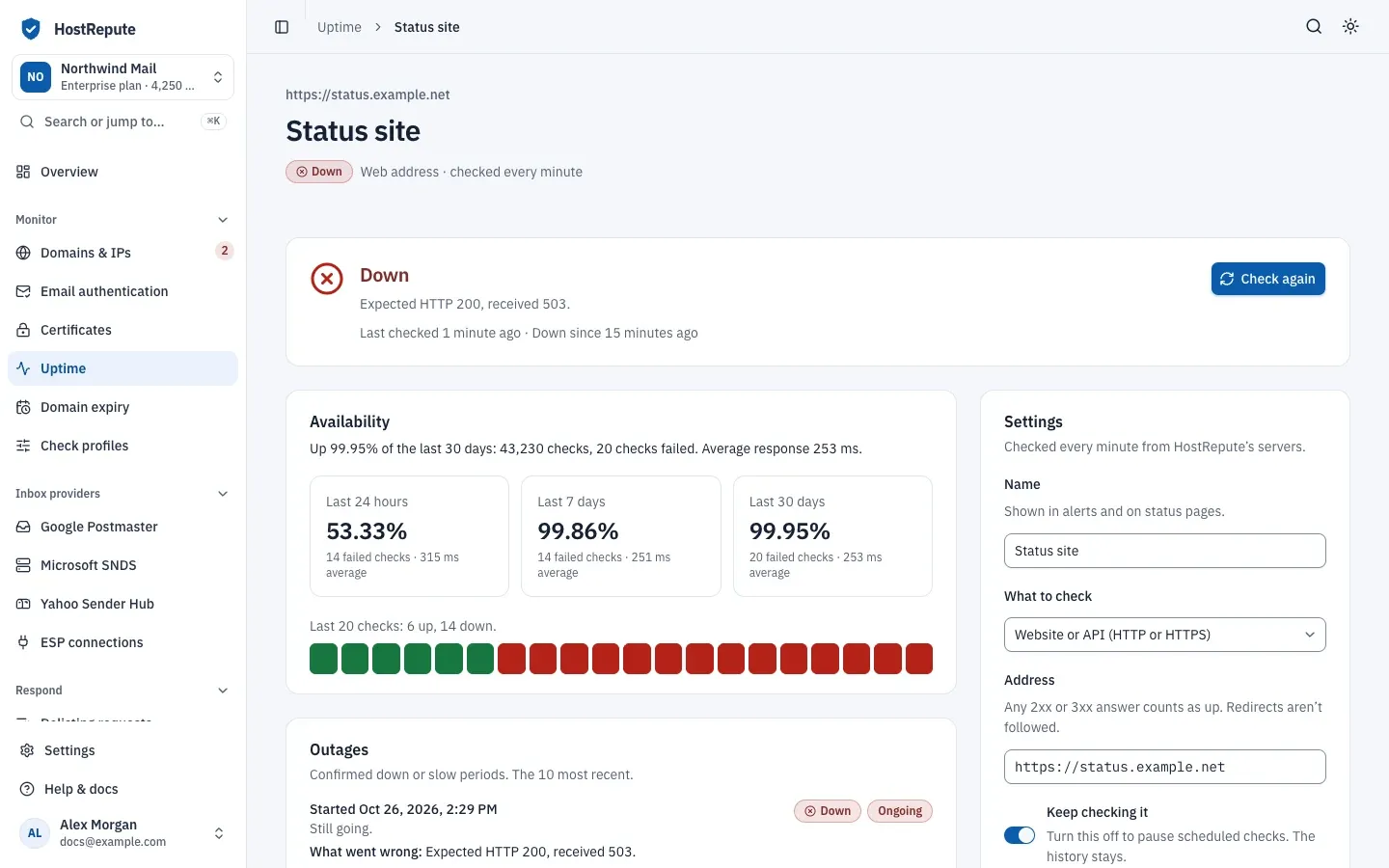
- The panel at the top says what the last check found, since when, and what went wrong.
- Availability shows uptime for the Last 24 hours, the last 7 days and the Last 30 days, with failed checks and the average response time. Up and Slow checks both count as available here, and every check counts, including failures that were never confirmed.
- Outages lists the 10 most recent outages, how long they lasted and what went wrong. It says No outages so far. until the first one.
- Every check lists each check, newest first, for as long as your plan keeps uptime history.
- Settings has the same fields as the form you added it with.
To check right away, choose Check now or Check again. A manual uptime check uses no credits; you can start up to 6 a minute.
Pause or delete an uptime check
Section titled “Pause or delete an uptime check”There is no separate pause button: turn off the Keep checking switch in the list, or Keep checking it under Settings. A paused check shows Paused, keeps its history and doesn’t alert. On its page, choose Resume checks to turn it back on; that needs room on your plan.
To delete a check, use Danger zone on its page. Its history and outages are deleted for good, and status pages that show it lose its uptime.
Defaults and limits
Section titled “Defaults and limits”| Setting | Default | How to change |
|---|---|---|
| Monitor name | 120 characters | Fixed |
| URL (HTTP(S) monitors) | 2,048 characters | Fixed |
| Host (TCP port monitors) | 255 characters | Fixed |
| Port | 1 to 65535 | Fixed |
| Expected status code | 100 to 599 | Set per monitor |
| Keyword | 255 characters | Fixed |
| Give up after (seconds) | 1 to 15 seconds | Set per monitor |
| Slow after (milliseconds) | 100 to 60,000 milliseconds, and lower than the timeout | Set per monitor |
| Alert after this many failed checks in a row | 1 to 5 checks | Set per monitor |
Check that it worked
Section titled “Check that it worked”- The list shows the check’s status, its 30-day uptime, its last response time and when it last ran.
- The page shows a recent check under Every check.
Troubleshooting
Section titled “Troubleshooting”- “Private, local, and test hosts cannot be monitored from the hosted probe.” The address points to a private or local network. HostRepute can only check public addresses.
- “The uptime host must resolve to public IP addresses.” The name has no public DNS record yet, or points to a private address.
- “Expected HTTP 200, received 503.” The server answered with another status code. Fix the server, or change Expected status code if a different code is correct.
- Down because of the keyword. The page didn’t contain the text, or did contain it with Must not contain it. Check the spelling and capitals, and that the text appears in the first 256 KB of the page.
- A redirecting site shows Down. Redirects aren’t followed, so with an expected status code such as 200, a 301 answer counts as down. Set the address to the final URL, or leave the expected status code empty.
- Slow all the time. Raise Slow after (milliseconds), or look at the server’s load and what it waits on.
- “Your current plan cannot monitor more uptime endpoints.” You reached the plan’s limit. Pause or delete another check, or change your plan.
- The list says No uptime checks yet. Add the first check with Add an uptime check.