

Track Yahoo Sender Hub setup
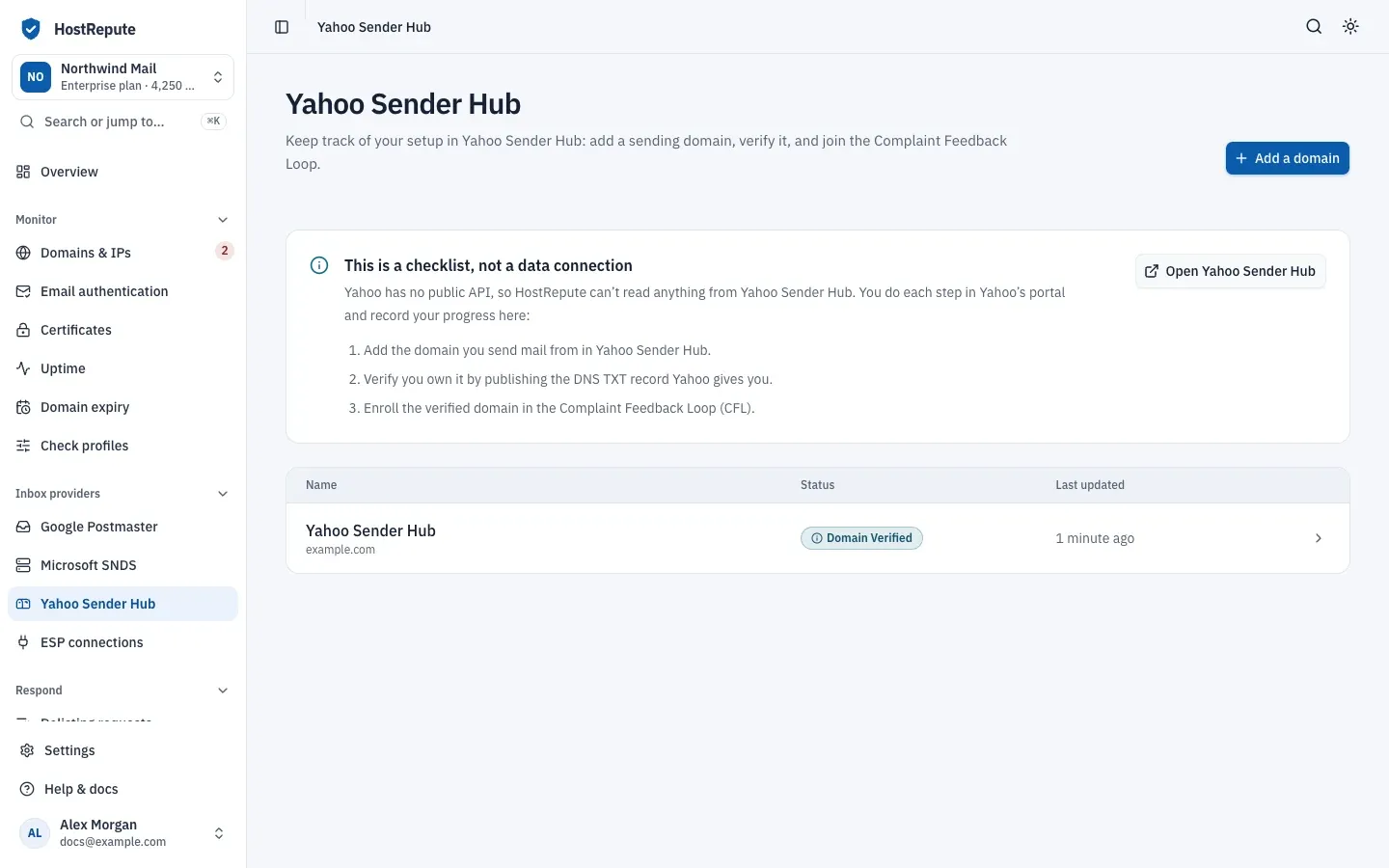
Yahoo Sender Hub is Yahoo’s site for email senders, where you add and verify your sending domains and enroll them in the Complaint Feedback Loop (CFL), Yahoo’s feedback loop: once a domain is enrolled, Yahoo sends you a report each time a recipient marks your mail as spam (Yahoo: Complaint Feedback Loop, checked October 2026). HostRepute doesn’t connect to Yahoo Sender Hub; as the page itself says, “Yahoo has no public API, so HostRepute can’t read anything from Yahoo Sender Hub.” Instead, Yahoo Sender Hub is a checklist: you do each step in Yahoo’s portal and record where each domain stands, so your team sees which domains still need work.
Before you begin
Section titled “Before you begin”- A Yahoo Sender Hub account. Yahoo’s steps are: create your sender profile, add and verify your domain, then enroll it (Yahoo: Complaint Feedback Loop, checked October 2026).
- DKIM signing. The CFL works only for mail signed with DKIM, and
you enroll the signing domain, the
d=part of the DKIM signature (Yahoo: Sender Hub FAQs, checked October 2026). - The Developer role or higher to add domains and record progress. A Viewer can read the checklist.
- A plan or the trial. Every plan includes Yahoo Sender Hub, with any number of domains; see Plans and limits.
Add a domain to the checklist
Section titled “Add a domain to the checklist”-
Open Inbox providers, then Yahoo Sender Hub and choose Add a domain.
-
Fill in the dialog:
- Name, for example “Marketing domain”.
- Sending domain: the domain exactly as you add it in Yahoo Sender Hub, such as
example.com. - Notes (optional): anything your team should know, for example who owns the Yahoo account. Up to 2,000 characters.
-
Choose Add domain. HostRepute opens the domain’s page at Setup Pending, with its Setup steps.
Work through the steps in Yahoo
Section titled “Work through the steps in Yahoo”Open Yahoo Sender Hub on the domain’s page opens senders.yahooinc.com in a new tab. The checklist has three steps:
-
Add the domain in Yahoo Sender Hub: sign in to Yahoo Sender Hub and add the domain to your account.
-
Verify that you own it: publish the DNS TXT record Yahoo gives you, then confirm it in Yahoo’s portal.
-
Join the Complaint Feedback Loop: enroll the verified domain in the CFL. You give Yahoo an address you control for the reports and confirm it with a code Yahoo sends there; the address doesn’t need to be on the same domain (Yahoo: Sender Hub FAQs, checked October 2026). Yahoo sends the complaint reports to that address, not to HostRepute.
After each step, choose I’ve done this on the current step in HostRepute. Each click records the next stage, from Setup Pending to Domain Verified to Enrolled in CFL.
These are the stages:
| Status | Meaning |
|---|---|
| Setup Pending | Next step: add the domain in Yahoo Sender Hub. HostRepute doesn't connect to Yahoo; you move the stage forward yourself after each step in Yahoo's portal. |
| Domain Verified | You published the DNS TXT record Yahoo gave you and confirmed it in Yahoo's portal. Next step: join the Complaint Feedback Loop. |
| Enrolled in CFL | The verified domain is enrolled in Yahoo's Complaint Feedback Loop (CFL), so Yahoo tells you about spam complaints. Setup is complete. |
In Settings you can also change the Name, the Sending domain and the Notes.
Check that it worked
Section titled “Check that it worked”- In Yahoo Sender Hub, under Manage Services › Complaint Feedback Loop, the domain shows as enrolled (Yahoo: Sender Hub FAQs, checked October 2026).
- In HostRepute, the domain shows Enrolled in CFL on Yahoo Sender Hub, and under its setup steps, all three are ticked and the page says “All set”.
Troubleshooting
Section titled “Troubleshooting”- Yahoo Sender Hub isn’t on your plan. The team’s plan doesn’t include it, so you can’t add domains. The domains already on the checklist stay, and you can still update or remove them.
- Add a domain or I’ve done this is missing. Your role can only read the checklist. Ask a member with the Developer role or higher.
- The domain isn’t accepted. Enter a domain name only, such as
example.comormail.example.com, withouthttps://, an@or a path. - The domain doesn’t show in the CFL section in Yahoo. Yahoo lists only domains you added and verified under Domains first (Yahoo: Sender Hub FAQs, checked October 2026). Verify it there, then enroll it.
- You send through an email service provider. Your provider may already have enrolled your domain in the CFL and process the complaints for you; Yahoo suggests checking with them (same FAQs).
- To take a domain off the checklist, use Danger zone on its page. Its stage and notes are deleted; nothing changes in Yahoo Sender Hub.