

Quickstart: monitor your first domain
In this quickstart you create a HostRepute account and set it up to monitor domain blacklist status for the domain you send email from: HostRepute checks it on every free blocklist it monitors, emails you when it is listed or removed, and shows the first results on the Overview. The setup itself takes about 2 minutes, and the first scan usually finishes in under a minute.
Before you begin
Section titled “Before you begin”- An email address you can read now, for the confirmation link, or a Google, GitHub, Yahoo or Microsoft account to sign up with. Sign-in and security describes every way to sign in.
- The domain you send email from, or the IP address of your mail server. Not sure which domain? Use the part
after the @ in your From address: for
avery@example.com, that’sexample.com. - No card. A new account starts with a 14-day trial.
- Invited by a teammate? Open the link in the invitation email first. HostRepute fills in the invited address on the sign-up form, and you join their team when your account is ready; read what the invited person does.
Create your account
Section titled “Create your account”-
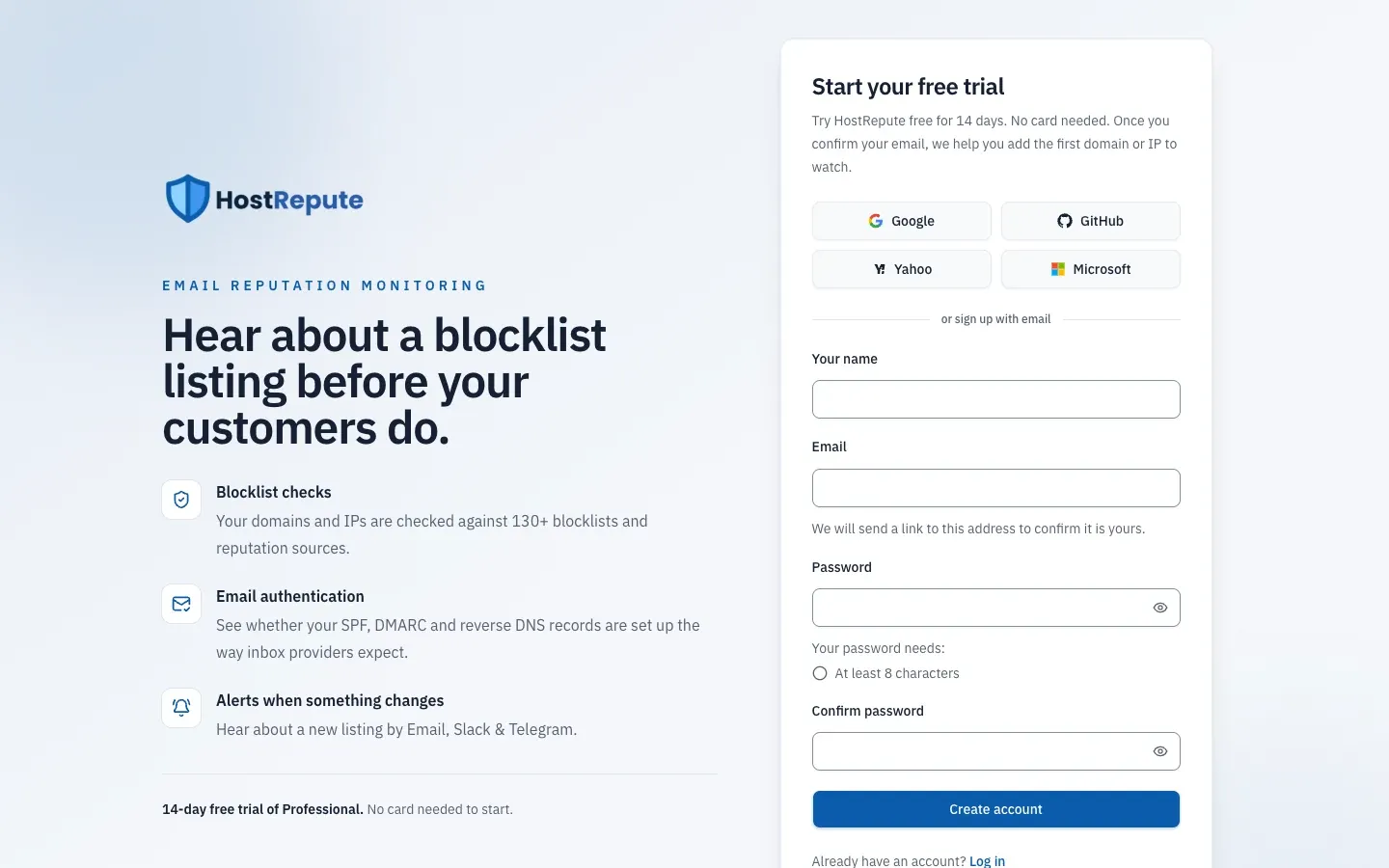
Open app.hostrepute.com/register, or choose Start a free trial on the login page.
-
Sign up in one of two ways:
- Choose Google, GitHub, Yahoo or Microsoft and approve the sign-in with that provider.
- Or, under or sign up with email, fill in Your name, Email and a Password of at least 8 characters, and type the password again in Confirm password.
-
If you signed up with email, complete the security check under the form (Cloudflare Turnstile) and choose Create account.
-
Confirm your email address. HostRepute shows Check your inbox and emails you a link that expires after 60 minutes. Open it, and setup starts. If the email doesn’t arrive, check your spam folder or choose Send a new link; if you opened the link in another tab, choose I have opened the link. Signing up with Google, GitHub, Yahoo or Microsoft skips this step, because the provider has already confirmed your address.
Set up what to watch
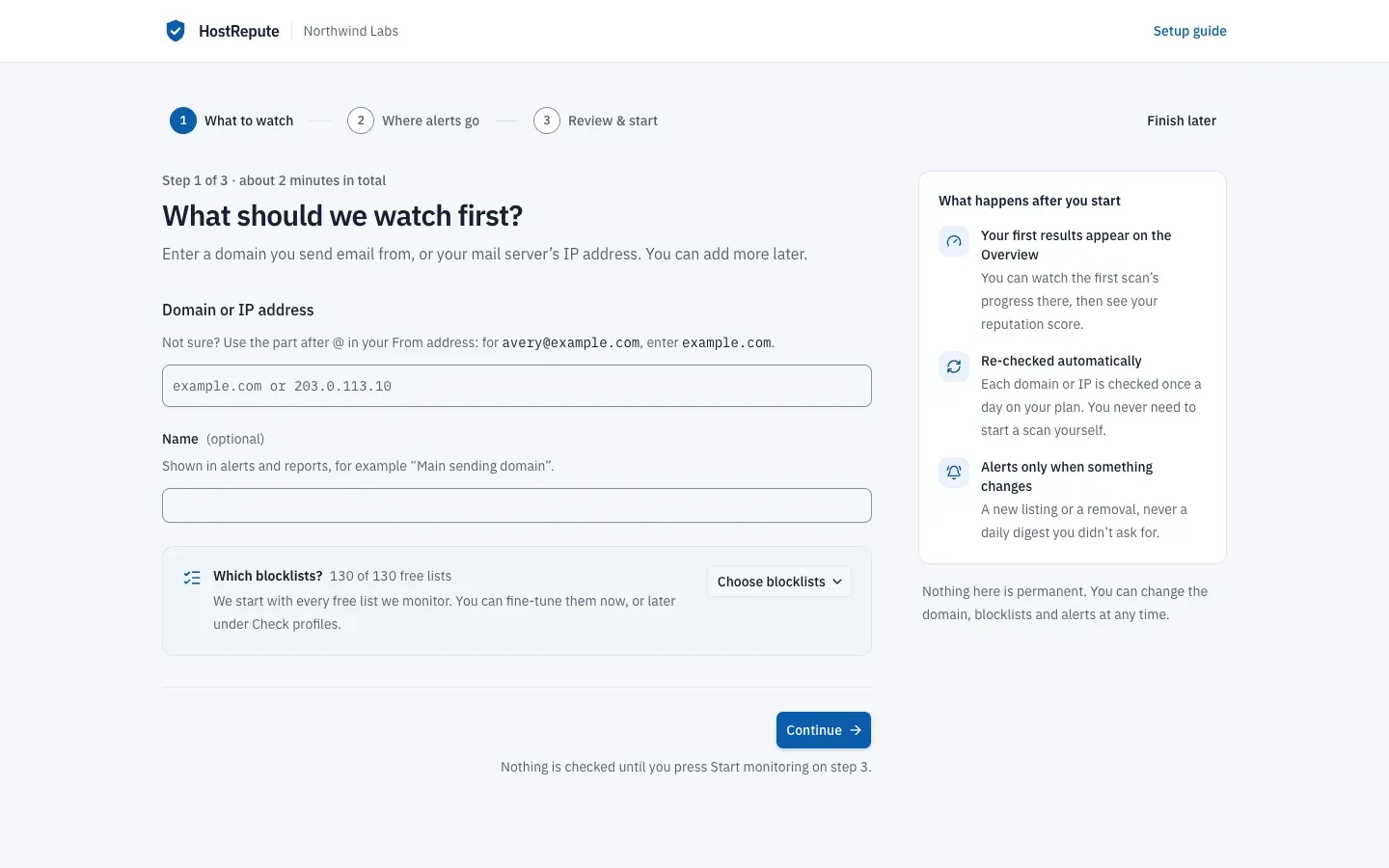
Section titled “Set up what to watch”HostRepute opens Get started in your first team, named after you (for example “Avery Smith’s Team”). It has three steps, and nothing is checked until you finish the last one.
-
What to watch. In Domain or IP address, enter your sending domain, such as
example.com, or your mail server’s IP address, such as203.0.113.10. If you paste a web address likehttps://www.example.com/, HostRepute keeps only the host name (www.example.com) and says whether it found a domain or an IP address. Add a Name if you like; alerts and reports show it. -
Under Which blocklists?, HostRepute starts with every free blocklist it monitors. To change that, choose Choose blocklists. The Check profile is “Default”, the check profile your team already has. The lists you tick are added to the chosen profile and lists already on it stay, so to check fewer lists, pick Create a new check profile first. Tick the lists you want, or Select all free lists. Premium lists can’t be added during setup. Then choose Continue.
-
Where alerts go. Email address for alerts already holds your account’s email address. HostRepute emails it when the domain or IP is listed on a blocklist or removed from one. Change the address, or clear it to skip alerts for now, and choose Continue. Slack, Telegram and the other alert channels can be added after setup.
-
Review & start. Check the summary; Change takes you back to a step. Under Email authentication, Also check email authentication records is ticked: every scan then also runs email authentication checks on the domain’s SPF, DMARC, MX and related DNS records, or an IP’s reverse DNS, at no extra cost, and the trial keeps the results for 90 days. To run only some tests, choose Choose specific DNS checks; with none ticked, the full recommended set runs.
-
Choose Start monitoring.
HostRepute now saves:
- the domain or IP, monitored with the check profile you picked;
- an email alert channel for the address from step 3, sending Listed and removed alerts, in the “Default Contacts” delivery hours every new team has, which let alerts through at any time;
- email authentication checks on that check profile, if you left them ticked;
and it queues the first scan right away.
Watch the first scan
Section titled “Watch the first scan”The Overview opens with “Your team is ready.” While the first scan runs, the card at the top follows it:
- Starting soon while the scan waits in the queue.
- Scanning now with a progress bar, the number of blocklists checked so far and any listings found so far. You can leave the page: the results stay, and alerts go to your alert channels.
- When the scan is done, the page reloads with your results by itself.
If the scan can’t finish, the card says First scan didn’t finish. That is usually temporary, for example when a blocklist doesn’t answer in time, and HostRepute tries again at the next scheduled check. A failed scan never means your domain or IP is listed. The page keeps checking for results for 15 minutes; after that, choose Check again.
The first scan, like every scheduled scan, is part of your plan and uses no credits.
Read your first results
Section titled “Read your first results”Once a scan has finished, the Overview shows your results:
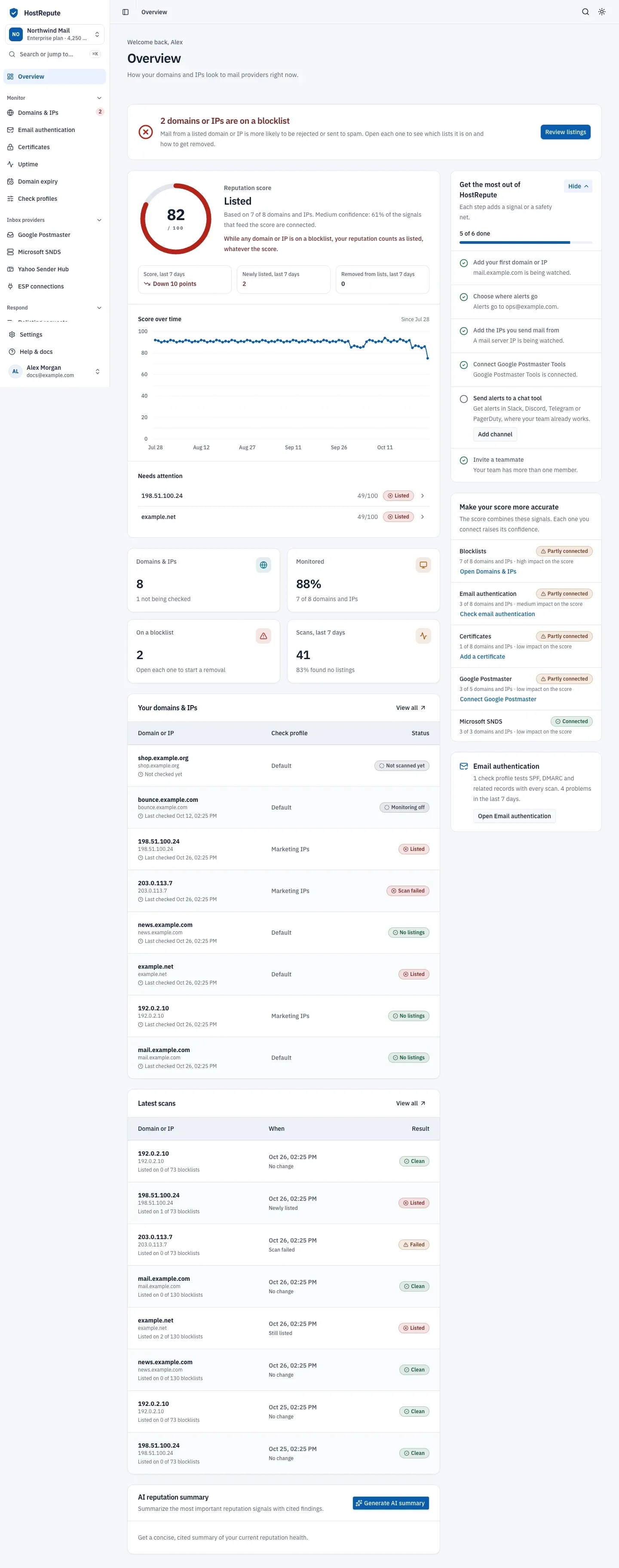
- The reputation score, from 0 to 100, with its label and how much of the score’s data is connected.
- Four numbers: your domains and IPs, how many are monitored, how many are on a blocklist, and recent scans.
- The setup checklist, with the next things to add.
- The banner at the top reads All clear when no blocklist lists your domain or IP. If one does, the banner turns red and offers Review listings, which lists the listed domains and IPs. The scan result of each one shows which blocklists list it and how to get removed.
- The reputation score combines the blocklist results with your email authentication and any other signals you connect. Its confidence rises as you connect more of them; the Make your score more accurate card on the right lists the ones still missing.
- Latest scans lists the most recent scans. Open one to see every blocklist’s answer.
- Get the most out of HostRepute suggests what to add next, such as the IPs you send mail from or a chat tool for alerts. Setup has already done its first step, and the second too if you kept the alert email.
Every part of this page is explained in The Overview page.
What you built
Section titled “What you built”- A team on the 14-day trial, with the limits of the Professional plan.
- One domain or IP that HostRepute checks once a day, the trial’s default. To check more often, change how often we check in Settings, then Team settings, then How often we check.
- A check profile with the free blocklists you chose, plus email authentication checks if you left them on.
- An email alert channel that tells you when the domain or IP is listed or removed.