

Set up alert channels
An alert channel is where HostRepute sends blacklist alert notifications and every other alert: an email address, a Slack or Discord channel, a Telegram chat, a PagerDuty service, Pushover, or your own HTTPS endpoint. Each channel decides which blocklist alerts it sends, which delivery hours it follows, and whether it’s on.
Channel types
Section titled “Channel types”| Channel | What you enter | Plans |
|---|---|---|
| Email address | Professional, Business, Enterprise | |
| Slack | Incoming webhook URL | Professional, Business, Enterprise |
| Telegram | Chat ID | Professional, Business, Enterprise |
| Discord | Webhook URL | Business, Enterprise |
| PagerDuty | Integration key | Business, Enterprise |
| Pushover | User key | Business, Enterprise |
| Webhook | Endpoint URL, Signing secret | Business, Enterprise |
Before you begin
Section titled “Before you begin”- The Developer role or higher to add, change, test and delete channels. Viewers can open the list and each channel’s page, but can’t change anything, and the page doesn’t show them a channel’s URL or key.
- Room on your plan. Each plan caps how many alert channels a team can have, and paused channels count too. While a cap applies, the page shows how many you use. Compare the plans in Plans and limits.
- The value the channel needs, from the table above. For Slack, create an incoming webhook for the channel that should get alerts; for PagerDuty, add an Events API v2 integration to the service you want to alert.
Add an alert channel
Section titled “Add an alert channel”-
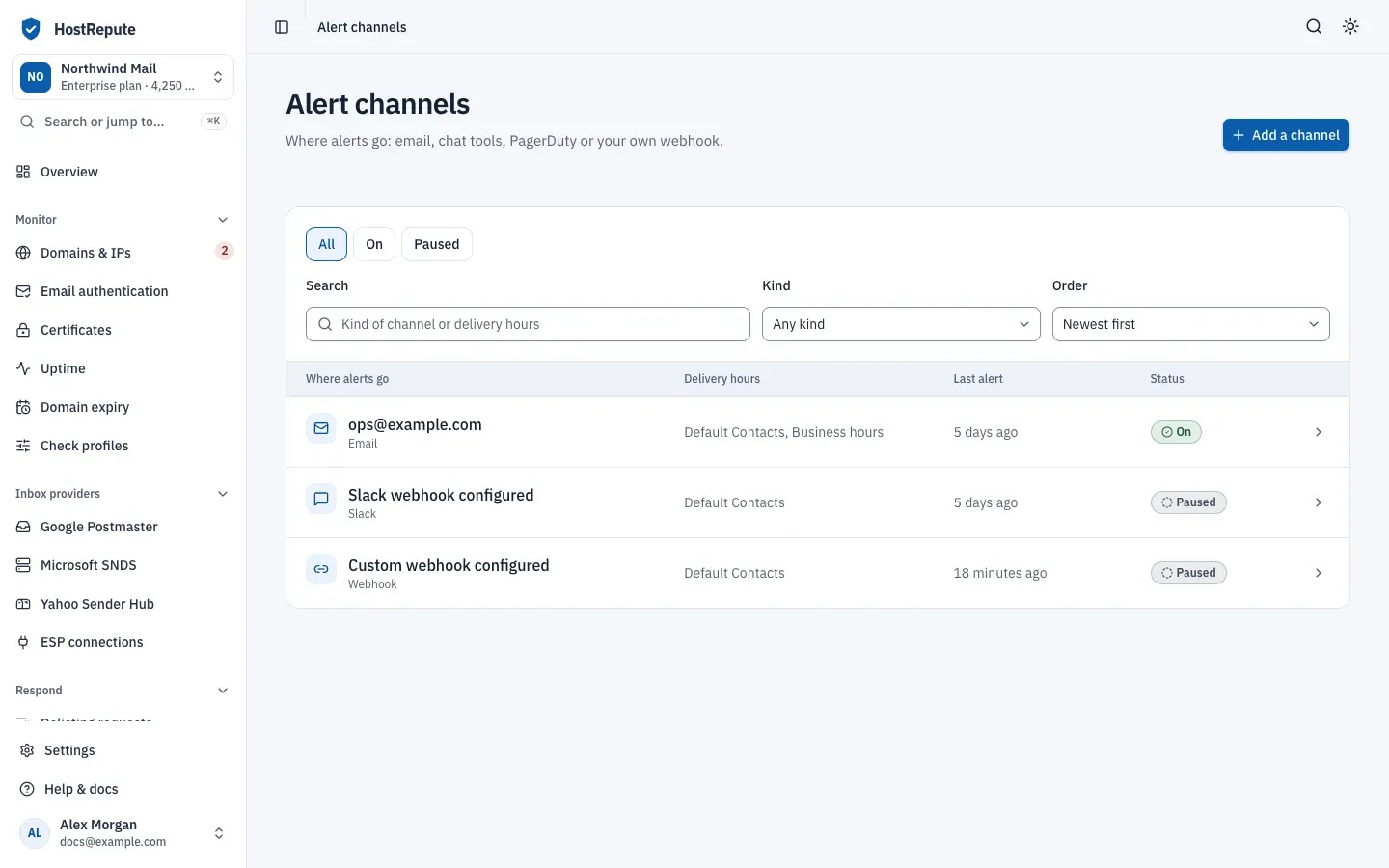
Open Alerts & sharing, then Alert channels and choose Add a channel. The button is greyed out when the team has as many channels as its plan allows.
-
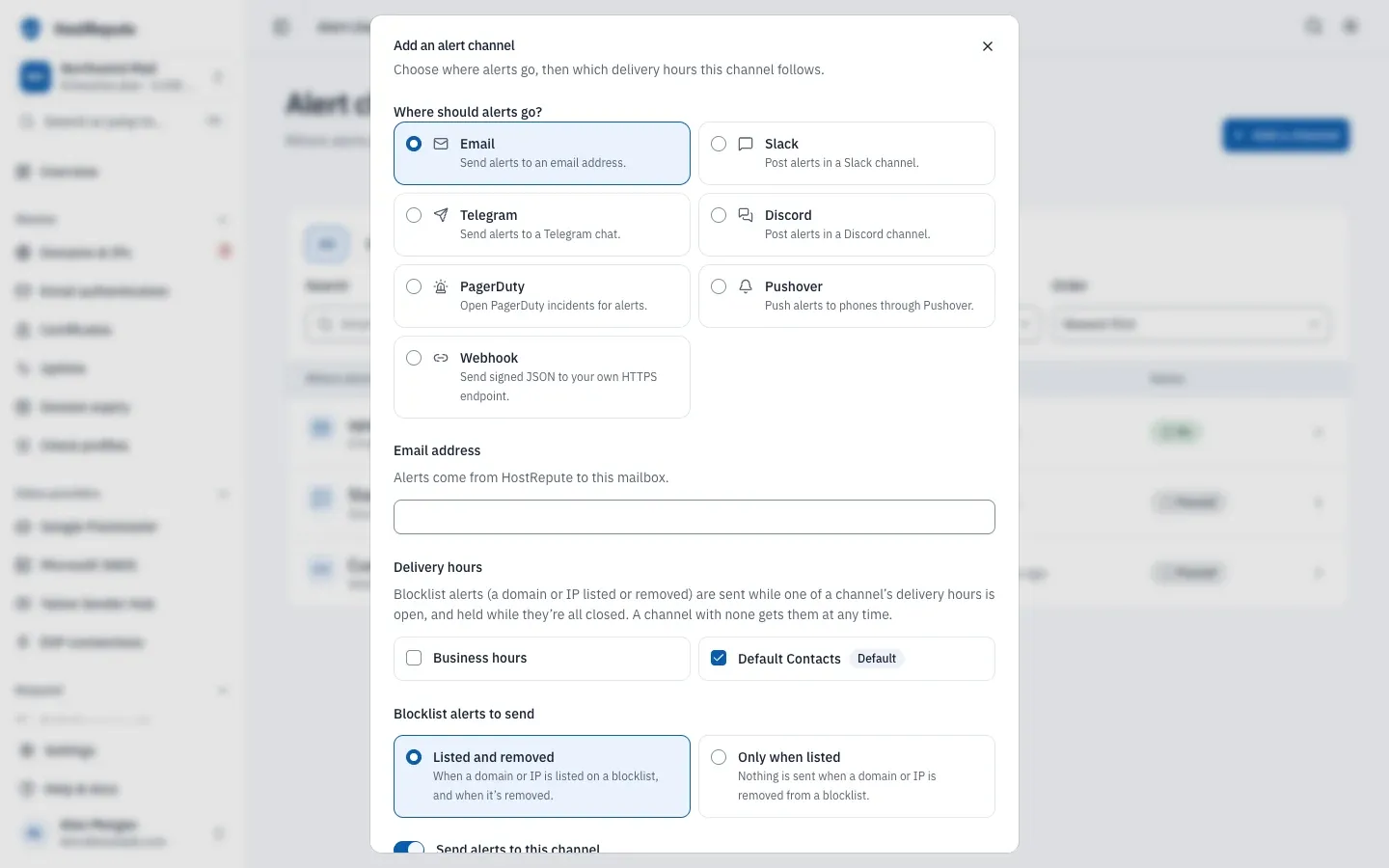
Under Where should alerts go?, pick the type of channel. Types your plan doesn’t include stay in the list, greyed out and marked Not on your plan.
-
Fill in what the type asks for:
- Email: the Email address. HostRepute doesn’t send the address a confirmation message, so send a test when you’re done.
- Slack: the Incoming webhook URL. It must start with
https://hooks.slack.com/. - Discord: the Webhook URL from the Discord
channel’s settings, under Integrations › Webhooks. It must be on
discord.comordiscordapp.com. - Telegram: the Chat ID of the chat or group.
- PagerDuty: the Integration key of the Events API v2 integration.
- Pushover: your User key, shown on your Pushover dashboard.
- Webhook: the Endpoint URL, a public
httpsaddress, and a Signing secret of 32 to 255 characters. Read Webhook channels first.
-
Under Delivery hours, tick the delivery hours the channel follows. The ones marked Default are ticked for you; a new team’s Default Contacts lets alerts through at any time. With no box ticked, the channel gets alerts at any time.
-
Under Blocklist alerts to send, choose Listed and removed or Only when listed, as described in the next section.
-
Leave Send alerts to this channel on and choose Add channel. The channel’s page opens.
-
Choose Send a test alert to check that alerts arrive.
To manage channels from your own code, use the alert channels API, which calls
them alerts.
Choose which blocklist alerts a channel sends
Section titled “Choose which blocklist alerts a channel sends”A blocklist alert goes out when a scheduled scan finds a domain or IP listed after it wasn’t, or clean after it was listed. The first scan of a domain or IP you add counts too, so adding one that’s already listed sends an alert. A change in how many blocklists list it doesn’t alert while it stays listed, and manual scans and API checks never send blocklist alerts.
- Listed and removed sends both: when a domain or IP is listed on a blocklist, and when it’s removed. New channels start with this choice.
- Only when listed sends nothing when a domain or IP is removed. Pick it for channels that page someone, such as PagerDuty or Pushover.
The choice only applies to blocklist alerts. HostRepute looks for new blocklist changes every five minutes and sends each channel one message with all the changes it found, so a scan that finds several listings sends one alert, not one per domain or IP:
- Each list in a message stops after 10 domains or IPs (5 on Pushover) and counts the rest. The webhook payload lists every one.
- Names are written with
[.]for each dot, for exampleexample[.]net, so spam filters don’t flag the alert for naming a listed domain. - A new channel, or one you turn back on, also gets the blocklist changes of the last 7 days that it wasn’t sent. Older changes are never sent.
What each channel receives
Section titled “What each channel receives”Every channel that’s on gets every kind of alert, whatever its type. Its delivery hours decide when:
| Alert | Sent when | While the channel’s delivery hours are closed |
|---|---|---|
| Blocklists | A scheduled scan finds a domain or IP listed or removed, as the channel’s choice above allows | Held, and sent when its delivery hours next open |
| Certificates | A check finds one of the events turned on in the certificate check profile | Dropped |
| Private certificate agents | An agent stops reporting, and when it’s back | Dropped |
| Uptime | An outage is confirmed, and when it ends | Dropped |
| Domain expiry | A domain reaches a warning threshold, expires, or is registered again | Dropped |
| Google Postmaster | A sync finds a high spam rate, delivery errors or sender requirements that need work | Dropped |
| Microsoft SNDS | A sync finds a changed filter result, a high complaint rate, trap hits or an IP status problem | Dropped |
| Delisting request reminders | The check-back date of a delisting request is due | Tried again every five minutes until a channel is open |
- A team with no channel that’s on gets no blocklist alerts at all. Its other alerts go to the team Owner by email.
- After a plan change, a channel whose type the new plan doesn’t include gets nothing. You can still turn it off or delete it.
- PagerDuty gets a trigger event for every alert, removals from a blocklist included, so pick Only when listed if removals shouldn’t page anyone. The end of an uptime outage sends a resolve event for that outage.
- A webhook channel receives each alert as an event; the alert channel events list them with a sample payload.
Send a test alert
Section titled “Send a test alert”On the channel’s page, Send a test alert sends a test message with the saved settings. With unsaved changes the button is greyed out; save first, so the test uses them. When it’s gone out, the page says when, and to check the settings if nothing arrives in a few minutes.
- A test goes out even when the channel is paused or its delivery hours are closed.
- It doesn’t appear in Alert activity and doesn’t change the channel’s Last alert.
- A team can send 5 tests a minute, and the button waits a few seconds between two tests.
- A webhook channel receives the test as the
alert.testevent.
Change, pause or delete a channel
Section titled “Change, pause or delete a channel”Open a channel from the list to see its page: Settings has the fields you added it with, What reaches this channel sums up when blocklist and other alerts reach it, and Danger zone deletes it.
- Change it. Edit the fields and choose Save changes. For a webhook channel the signing secret field stays empty: Leave it empty to keep the current secret.
- Pause it. Turn off Send alerts to this channel and save. The list shows Paused. A paused channel gets no alerts, the blocklist alerts held for it are dropped, and it still counts toward your plan’s limit. Turning it back on needs room on the plan.
- Delete it. Choose Delete channel. Alerts stop going to the channel right away; its past alert activity is kept.
In the list, All, On and Paused filter by state, Search matches the kind of channel or the name of its delivery hours, and Order sorts by Newest first or Most recent alert first.
Webhook channels
Section titled “Webhook channels”A webhook channel sends each alert as a JSON POST to its endpoint URL, signed with the channel’s own signing secret.
That secret belongs to this channel only; it isn’t the team webhook secret that signs API scan callbacks.
-
Headers.
X-HostRepute-Eventnames the event,X-HostRepute-Timestampholds the send time, andX-HostRepute-Signatureissha256=followed by the hex HMAC-SHA256 of the timestamp, a dot and the raw request body, keyed with the signing secret. Recompute it on your side and compare before you trust the request: receive webhooks has verification code for Node.js, Python, PHP, Go and Ruby. -
The secret is required. The form lets you leave Signing secret empty, but HostRepute refuses to save a new webhook channel without one: the field shows “The settings.webhook_secret field is required for this alert type.” HostRepute never shows a saved secret again, so keep a copy where your endpoint can read it. One way to make a 64-character secret:
Terminal window openssl rand -hex 32 -
Your endpoint must answer with a 2xx status within 10 seconds. HostRepute makes 3 attempts in a row and doesn’t follow redirects.
-
Public HTTPS only. The URL must use
httpsand resolve only to public addresses;localhost, names ending in.localor.internal, and private or reserved IP addresses are refused.
The webhook events reference lists every event with a sample payload.
Defaults and limits
Section titled “Defaults and limits”| Setting | Default | How to change |
|---|---|---|
| Email address | 255 characters | Fixed |
| Slack webhook URL | 2,048 characters, HTTPS | Fixed |
| Telegram chat ID | 255 characters | Fixed |
| Discord webhook URL | 2,048 characters, HTTPS | Fixed |
| PagerDuty routing key | 255 characters | Fixed |
| Pushover user key | 255 characters | Fixed |
| Webhook endpoint URL | 2,048 characters, HTTPS | Fixed |
| Webhook signing secret | 32 to 255 characters | Fixed |
How many channels a team can have depends on its plan: see Plans and limits.
Check that it worked
Section titled “Check that it worked”- The list shows the channel with On and its delivery hours, or None, so alerts go out at any time.
- The test alert arrives.
- After the next blocklist change, the channel’s Last alert shows a time, and the alert is in Alert activity.
Troubleshooting
Section titled “Troubleshooting”- The list says No alert channels yet. Add one with Add a channel. Until then the team gets no blocklist alerts, and its other alerts go to the Owner by email.
- The type you want says Not on your plan. Discord, PagerDuty, Pushover and Webhook need the Business or Enterprise plan; the team Owner changes the plan.
- Add a channel is greyed out, or a paused channel can’t be turned back on. The team has as many channels as its plan allows, paused ones included. Delete one, or move to a bigger plan.
- “… must be a public HTTPS webhook URL.” A Slack URL must be on
hooks.slack.comand a Discord URL ondiscord.comordiscordapp.com. A webhook URL must usehttpsand resolve to a public address. - “The webhook signing secret field must be at least 32 characters.” Use a longer secret, such as the output of
openssl rand -hex 32. - “The configured destination URL is not a valid public HTTPS endpoint.” when you test. The saved URL no longer resolves to a public address. Fix it and save.
- “That was a lot of tests in a row. Wait a moment, then try again.” The team sent 5 tests within a minute. Wait, then test again.
- The test arrives but a blocklist alert doesn’t. Manual scans never send blocklist alerts. Check that the channel is on, that Only when listed isn’t hiding a removal, and whether Alert activity shows the alert as held for delivery hours.
- Certificate or uptime alerts never arrive at night. They are dropped while all of a channel’s delivery hours are closed. Keep one channel without delivery hours for alerts you can’t miss.
- Your webhook endpoint gets nothing. It must answer with a 2xx status within 10 seconds, without a redirect, and its URL must still resolve to a public address.