

Teams and team settings
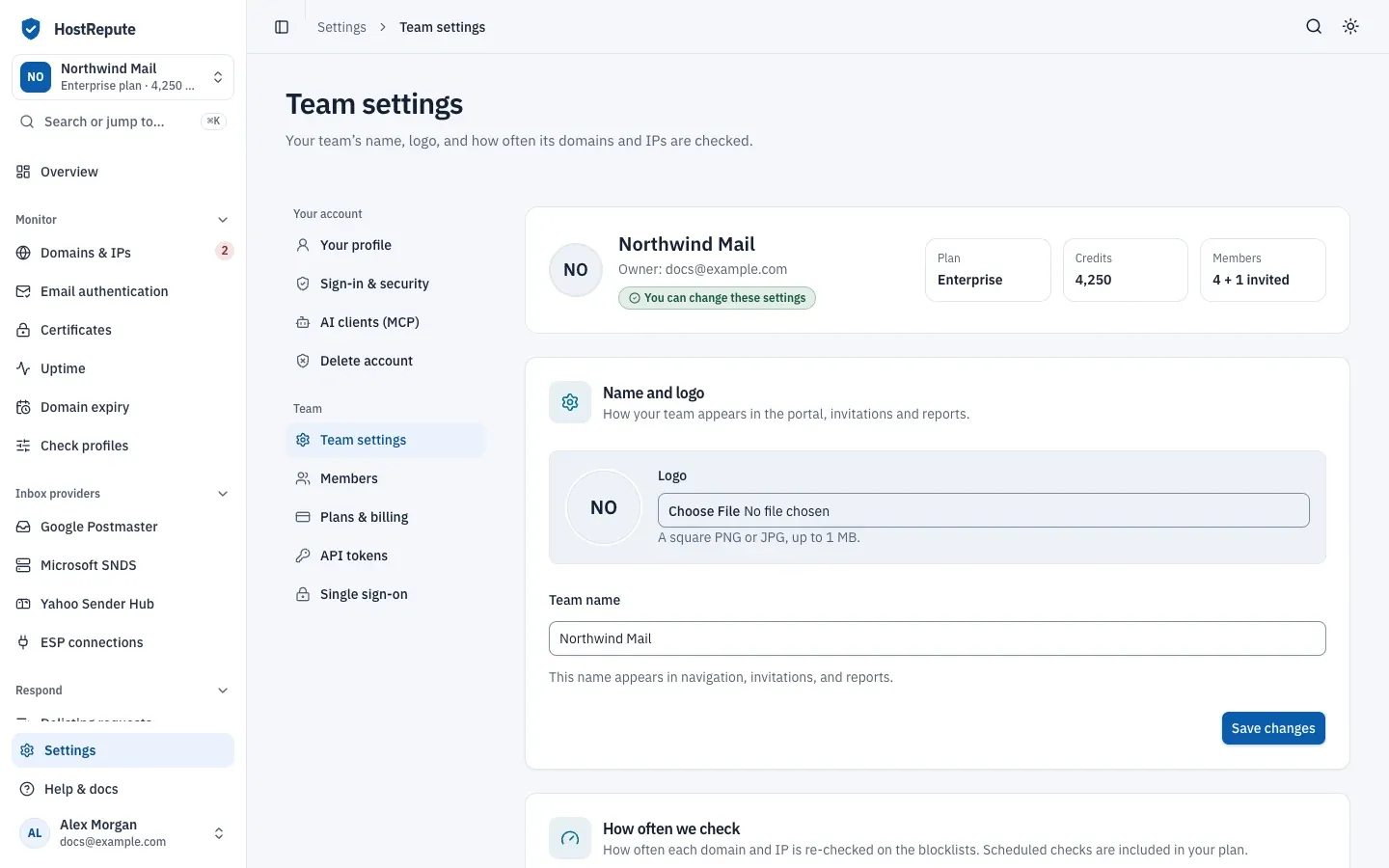
Team settings are where a team’s Owner and Admins set the team’s name and logo and choose how often HostRepute checks its domains and IPs. This guide also covers creating a team, switching between your teams and deleting a team you own.
A team holds everything you monitor: its domains and IPs, check profiles, alert channels, delivery hours, members, API tokens, plan and credits. You can belong to several teams, with a different role in each.
Before you begin
Section titled “Before you begin”- Your role. Anyone can create a team and becomes its Owner. Changing the name, the logo and how often we check needs the Owner or an Admin; for every other role, Team settings is marked View only. Only the Owner can delete a team. What each role can do lists every right.
- Your trial. The 14-day trial belongs to you, not to a team: every team you own shares it, and creating another team doesn’t start a new one. A team you create after your trial has ended opens on Choose a plan to start monitoring again until its Owner chooses a plan, as described in Plans, trial and billing.
Create a team
Section titled “Create a team”-
Open the team menu at the top of the sidebar, which shows your current team’s name, and choose Create a team.
-
Enter a Team name of 2 to 50 characters and choose Create team.
-
HostRepute makes you the team’s Owner and opens Get started, where you add the team’s first domain or IP. Quickstart: monitor your first domain walks through it.
A new team starts with a check profile named “Default” that uses every free blocklist, and with delivery hours named Default Contacts that are open at any time. Nothing is copied from your other teams: invite members and add alert channels and API tokens again.
Switch between teams
Section titled “Switch between teams”- Team menu. The menu at the top of the sidebar lists your teams under Teams, in alphabetical order, with a check mark next to the current one. Choose another team to switch. From a list or settings page, such as Domains & IPs, you land on the same page in the other team; from a page about one item, such as a single domain or IP, the other team’s Overview opens.
- Command palette. Press ⌘ K (or Ctrl K). The Switch team group has a “Switch to …” entry for each of your other teams.
The team you opened last is the one HostRepute opens the next time you sign in.
Change the team name and logo
Section titled “Change the team name and logo”-
Open Settings, then Team settings. The team menu’s Team settings opens the same page.
-
Under Name and logo, choose a file for Logo: a square PNG or JPEG of up to 1 MB. A preview replaces the team’s initials.
-
Change the Team name if you need to. It takes 2 to 50 characters and appears in navigation, invitations and reports.
-
Choose Save changes.
A team without a logo shows its initials. Once a logo is set, there’s no way to remove it, only to replace it with another file.
Choose how often we check
Section titled “Choose how often we check”How often we check sets how often every domain and IP in the team is checked again on the blocklists. It’s one setting for the whole team: check profiles have no schedule of their own, and scheduled checks never use credits.
-
In Settings, then Team settings, go to How often we check.
-
Pick an interval in Check every. Each option says how many checks a day it means, for example Hourly (24 checks per day). The list starts at the fastest interval your plan allows and ends at Every 2 days.
-
Choose Save.
Until you pick one, the team uses its plan’s default interval. On the Business and Enterprise plans the field then says “You’re on your plan’s default. Pick a shorter interval to check more often.” On Professional and during the trial, where the fastest interval is hourly, it says “Checking more often than once an hour is part of higher plans.” Each plan’s default and fastest interval are in Blocklist monitoring.
The webhook secret for scan callbacks
Section titled “The webhook secret for scan callbacks”Each team has a secret that HostRepute uses to sign scan callbacks: the
requests it sends, with an X-Webhook-Signature-V3 header, to the callback_url of a blocklist or certificate check
you start through the API. Team settings doesn’t show this secret, and the portal has no way to rotate it yet.
The webhook alert channel is separate: it has its own signing secret, which you enter in the channel’s form. Read Set up alert channels.
Delete a team
Section titled “Delete a team”-
Check that you can delete it. You must be the team’s Owner and belong to at least one other team (if this is your only team, create a team first). The team must have no active or pending subscription: cancel its plan in Settings, then Plans & billing. A cancelled plan still counts until its paid period ends.
-
Open Settings, then Team settings. The Delete this team section at the bottom of the page appears only when all of this is true. Choose Delete team.
-
The dialog lists what will be deleted. Type the team’s name to confirm and choose Delete team for good, or choose Keep the team to stop.
-
HostRepute deletes the team and opens another of your teams.
Check that it worked
Section titled “Check that it worked”- The team menu at the top of the sidebar shows the new name and logo.
- After you change how often we check, each check profile’s When it runs shows the new interval and when the next scan is due.
- A new team appears in the team menu under Teams. A deleted team disappears from every member’s menu.
Limits
Section titled “Limits”| Setting | Default | How to change |
|---|---|---|
| Team name | 2 to 50 characters | Fixed |
| Team avatar | An image up to 1 MB (1,024 KB) | Fixed |
| Blocklist check interval, shortest | Every 30 minutes | Set in team settings; plans without faster checks start at every hour |
| Blocklist check interval, longest | Every 48 hours | Set in team settings |
| Callback signing secret | 64 characters, generated by HostRepute | Not shown or rotatable in the portal yet |
Every other limit is in Limits and defaults.
Troubleshooting
Section titled “Troubleshooting”- The page is marked View only and the fields are greyed out. Your role in this team is Manager, Developer or Viewer. The name field says “Only team owners and admins can rename the team.” Ask the Owner or an Admin.
- “The avatar field must be an image.” The logo must be a PNG or JPEG file.
- “The avatar field must not be greater than 1024 kilobytes.” Use a file of 1 MB or less.
- The interval you want isn’t in the list. The list shows only the intervals your plan allows. Compare plans in Plans and limits.
- “The monitoring interval must be at least … minutes for your current plan.” The interval is faster than your plan allows, for example after a plan change in another tab. Pick one from the list again.
- Scans slowed down after a plan change. When the team’s interval is faster than its new plan allows, scans run at the plan’s fastest interval until you pick another one.
- There’s no Delete this team section. You aren’t the Owner, this is your only team, or the team still has an active or pending subscription. Check each condition in Delete a team.
- “The team was not deleted because one or more subscriptions are still active or pending. Cancel them in Billing before deleting this team.” A subscription became active after the page loaded. Cancel it in Settings, then Plans & billing, then try again.
- You want to leave a team or hand it over. HostRepute has no way to leave a team yourself and no ownership transfer. The Owner or an Admin can remove you in Settings, then Members; the Owner role stays with the person who created the team.
- A new team asks you to choose a plan. Your trial has ended, and the trial isn’t restarted for new teams. Choose a plan for the team in Settings, then Plans & billing.