

Sign-in and security
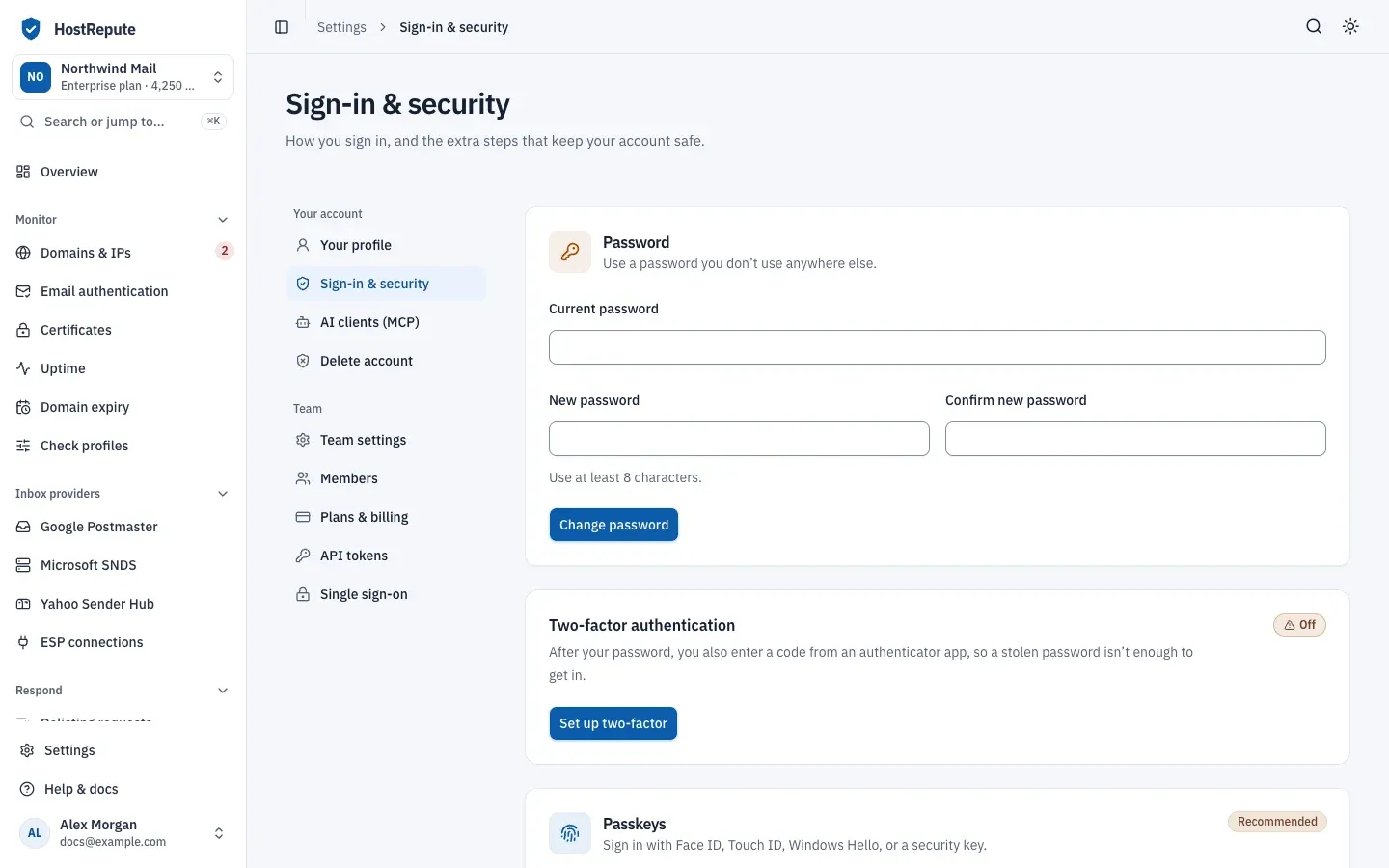
Settings, then Sign-in & security is where you choose how you sign in to HostRepute and add the extra steps that keep your account safe: a password, two-factor authentication with an authenticator app, and passkeys. These settings belong to your account, not to a team, so they apply in every team you’re in.
Ways to sign in
Section titled “Ways to sign in”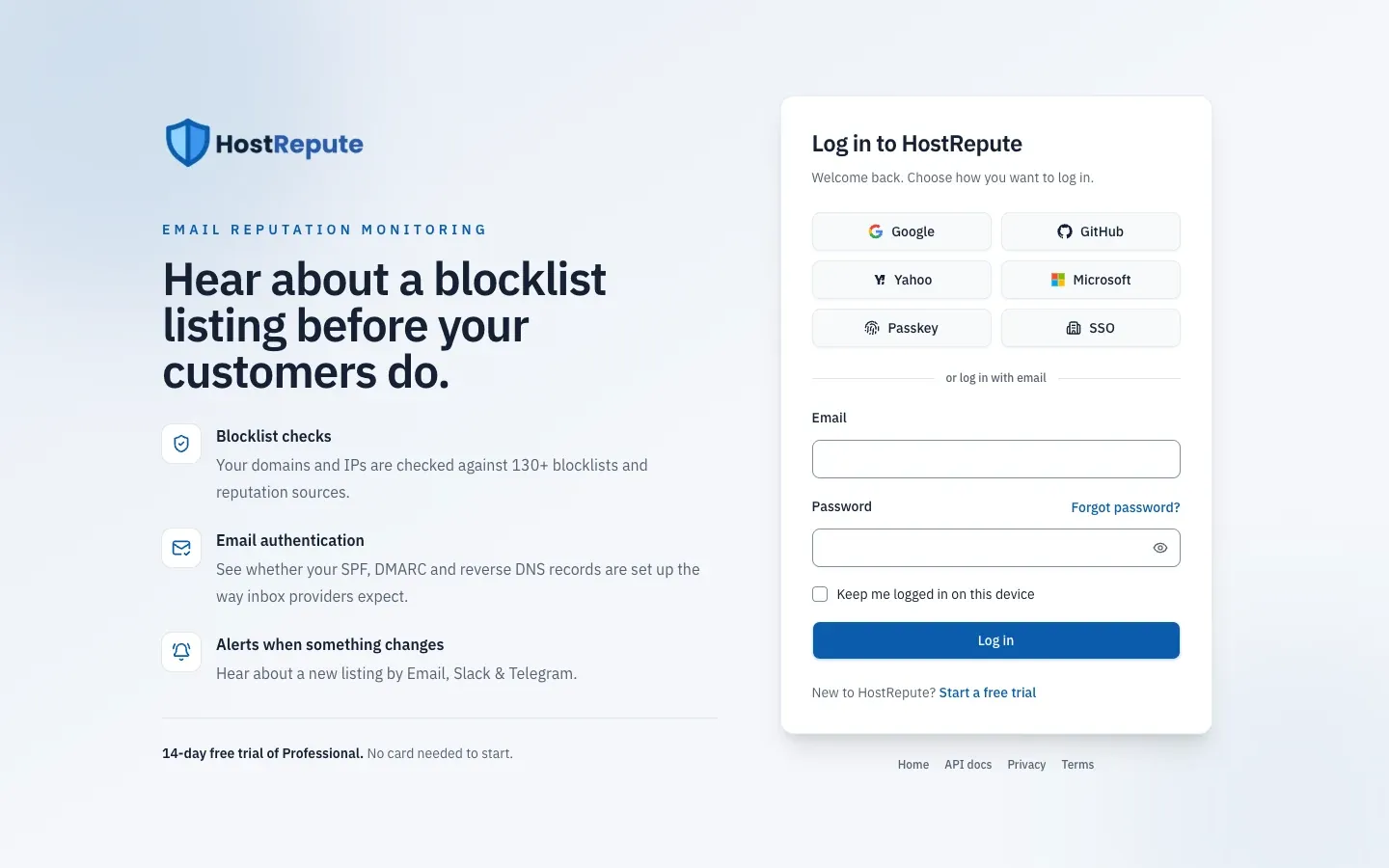
- Email and password, in the form under or log in with email.
- A passkey, with Passkey, once you’ve added one to your account.
- A social sign-in, with Google, GitHub, Yahoo or Microsoft. HostRepute signs you in to the account with the email address the provider returns.
- Single sign-on, with SSO, when your team’s Owner has set up single sign-on.
The log-in page marks the method you last used in this browser with Last used. HostRepute remembers it for 180 days, so you can find the right button on your next visit.
Before you begin
Section titled “Before you begin”- A password, for the sensitive steps. Turning two-factor on or off, getting new recovery codes, and adding or removing a passkey ask you to confirm your password on Confirm it is you. The confirmation lasts 3 hours.
- Signed up with Google, GitHub, Yahoo, Microsoft or single sign-on? Your account has no password yet, so those steps are blocked until you set one, as described in the next section.
Change or set your password
Section titled “Change or set your password”-
Open Settings, then Sign-in & security.
-
Under Password, enter your Current password. An account without a password shows Set a password instead, with no current password field.
-
Enter a New password of at least 8 characters, and type it again in Confirm new password. Eight characters is HostRepute’s only rule; use a password you don’t use anywhere else.
-
Choose Change password (or Set password).
If you’ve forgotten your password, choose Forgot password? on the log-in page. On Reset your password, enter your email and choose Send reset link. The link in the email works for 60 minutes, and HostRepute sends at most one a minute. It opens Choose a new password, where you enter the new password twice and choose Save new password.
Turn on two-factor authentication
Section titled “Turn on two-factor authentication”With two-factor authentication on, signing in takes your password and a code from an authenticator app, so a stolen password isn’t enough to get in.
-
Under Two-factor authentication, choose Set up two-factor, and confirm your password if asked.
-
In your authenticator app (the portal names Google Authenticator, 1Password and Authy as examples), add an account by entering a setup key. Name it HostRepute and enter the key the portal shows; Copy key copies it. HostRepute shows no QR code: if your app takes a link instead of a key, choose My app takes a setup link instead and copy the
otpauth://link. -
In Enter the 6-digit code your app shows, type the code from the app and choose Turn on two-factor. Finish within 10 minutes of starting; after that, start the setup again.
-
Under Save your recovery codes, keep the 8 recovery codes. Each one lets you sign in once if you lose your phone, and they’re not shown again. Use Copy all or Download as a text file, then tick I’ve saved these codes somewhere safe.
Cancel setup stops a setup you haven’t finished.
Sign in with two-factor
Section titled “Sign in with two-factor”After your password, a social sign-in or single sign-on, HostRepute opens Enter your verification code. Pick Authenticator app and type the 6-digit code your app shows (it changes every 30 seconds), or pick Recovery code and type one of your recovery codes. Then choose Verify and log in.
- You have 10 minutes after the first step to enter the code. You can try 6 codes a minute and 10 in 30 minutes.
- Each recovery code works once. Capital letters don’t matter.
- While two-factor is on, Keep me logged in on this device has no effect: you sign in again after each session.
- Signing in with a passkey doesn’t ask for a code.
Get new recovery codes or turn two-factor off
Section titled “Get new recovery codes or turn two-factor off”- Get new recovery codes gives you 8 new codes. The old ones stop working at once.
- Turn off two-factor asks you to confirm in a dialog: your password alone is then enough to sign in. Choose Turn off two-factor again, or Keep it on.
Add a passkey
Section titled “Add a passkey”A passkey signs you in with Face ID, Touch ID, Windows Hello or a security key instead of a password. Your browser and device must support passkeys.
-
Under Passkeys, type a Name for this passkey that helps you recognize the device, or leave the suggested one, such as “macOS passkey”.
-
Choose Add passkey. Confirm your password if asked, then follow your browser’s prompt.
-
The passkey appears in the list with its Name, Authenticator and Last used date.
Until you add one, the card shows “No passkeys yet”. HostRepute emails you whenever a passkey is added to or removed from your account. To change a passkey’s name, choose the pencil button in its row, type the new name in the Rename passkey dialog and choose Save name. To delete it, choose the trash button, then Remove passkey. Adding a passkey needs a password on the account: without one, the card says “Set a password first”.
To sign in with it, choose Passkey on the log-in page. Passkey sign-in needs a verified email address, and it skips the two-factor code.
Sign in with Google, GitHub, Yahoo or Microsoft
Section titled “Sign in with Google, GitHub, Yahoo or Microsoft”Choose the provider on the log-in page and sign in there. HostRepute then:
- Looks for a HostRepute account with the email address the provider returned, and signs you in to it. If there’s none, it creates one. A new account joins the team that invited it, if you opened an invitation link first; otherwise it gets a team of its own.
- Treats that email address as verified.
- Asks for your two-factor code, if you turned two-factor on.
Sign-in & security has no list of connected providers and no way to disconnect one. Any of the four providers that returns your account’s email address can sign you in.
Check that it worked
Section titled “Check that it worked”- Two-factor authentication shows On, with Get new recovery codes and Turn off two-factor below it.
- A new passkey is in the list; after you sign in with it, its Last used date changes.
- Log out and back in: the method you used is marked Last used.
Troubleshooting
Section titled “Troubleshooting”- “Too many login attempts. Please try again in … seconds.” Five failed passwords for the same email address from the same IP address within 60 seconds lock password sign-in for that address for the rest of that minute. Wait, or sign in with a passkey or a provider.
- “These credentials do not match our records.” The email or password is wrong. Use Forgot password? to reset the password.
- “The two-factor challenge has expired. Please sign in again.” More than 10 minutes passed after the first step. Start again from the log-in page.
- “The provided authentication code was invalid.” Type the code your app shows now, or switch to Recovery code.
- You’ve lost your authenticator app and your recovery codes. If you added a passkey, sign in with it and turn two-factor off or get new recovery codes. HostRepute has no self-service way to turn off two-factor without signing in.
- “Start two-factor setup again before confirming a code.” The setup is more than 10 minutes old. Choose Set up two-factor again.
- “Set an account password before confirming sensitive security changes.” Your account has no password. Set one under Set a password.
- “The current password is incorrect.” Retype your current password, or reset it from the log-in page.
- “A passkey for this account and device already exists.” This device already has a passkey for your account.
- The Passkey button is greyed out, or the page says “This browser cannot use passkeys.” Use a browser and device that support passkeys, or log in another way.
- A provider sign-in brings you back to the log-in page without a message. The sign-in at the provider failed or was cancelled. Try again, or use another method.
- “Your organization requires single sign-on. Use “Sign in with SSO” to continue.” Your email domain is set to require single sign-on. Choose SSO on the log-in page, enter your work email and continue.
Every sign-in limit and timer is in Limits and defaults.