

Share a scan report
To share blacklist report results with a client, a colleague or a support ticket, create a private link to one scan. Anyone with the link can open the report without signing in; search engines are asked not to index it, and the link stops working after 90 days or as soon as you revoke it. The report page also offers a reputation score badge that you can embed on a website.
Before you begin
Section titled “Before you begin”- A scan to share. Every scan of a domain or IP has a page with a Public report card. A manual scan offers the same link under Share these results once its result is in.
- The Developer role or higher to create, update and revoke links. Viewers can open links that already exist.
Create a private link
Section titled “Create a private link”-
Open the scan: on the domain or IP’s page under Monitor, then Domains & IPs, open a scan in Scan history and choose Open Full Page. For a manual scan, open Share these results under its result instead.
-
Decide on Show HostRepute branding. It’s on at first; turn it off to share the results under your own name only.
-
Choose Create a private link (Create a link on a manual scan). The card changes to Link active and shows the Share link with the date it expires.
-
Choose Copy link and send the link, or Open report to see what the recipient sees.
A scan has one link at most. Creating it again while it’s active keeps the same address.
What the report shows
Section titled “What the report shows”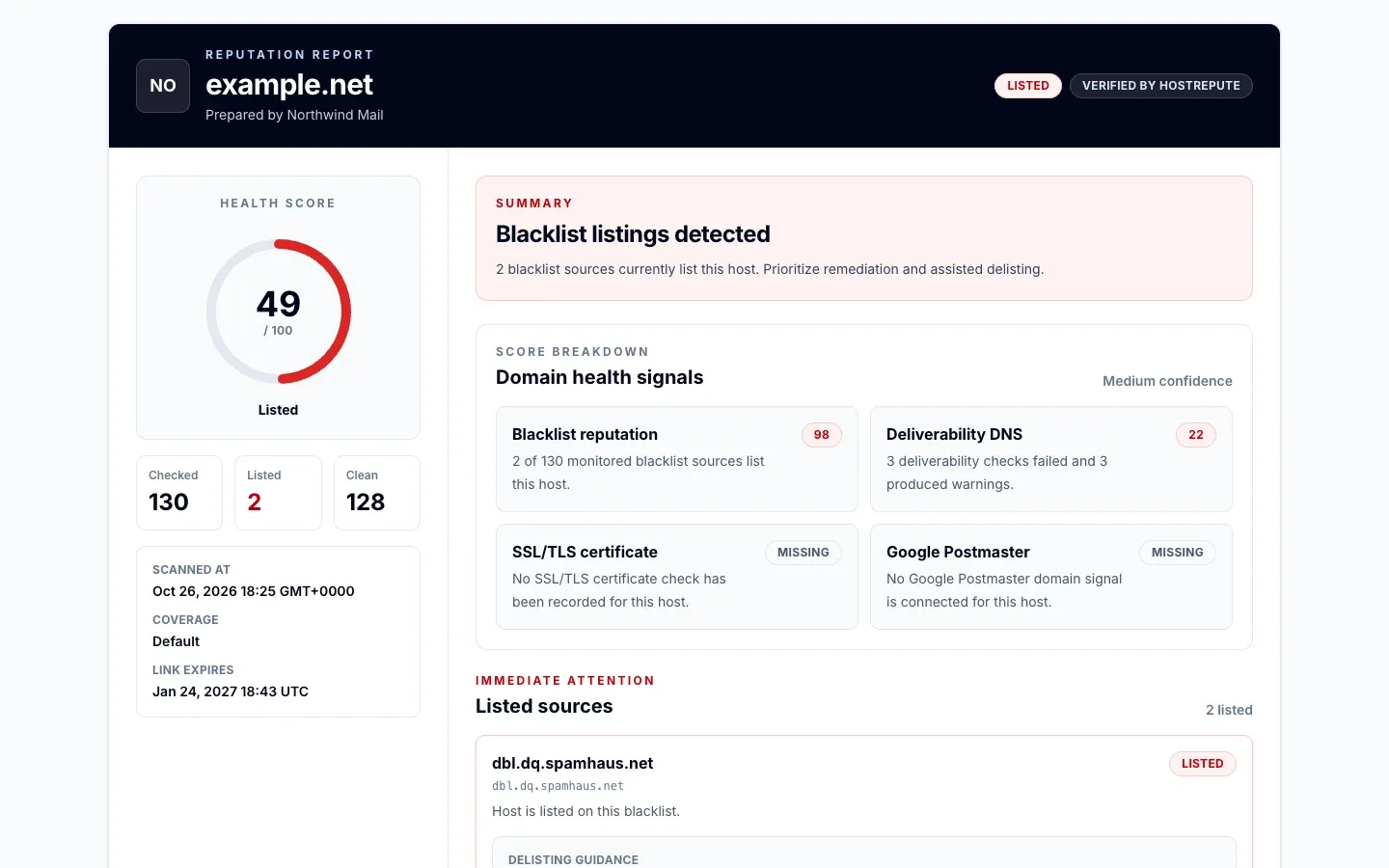
The report is a snapshot of the scan, saved when you created or last updated the link. Later scans don’t change it. It shows:
- your team’s name (“Prepared by”) and logo, the domain or IP, and whether it’s listed;
- the reputation score with its tier, its breakdown by signal and its confidence;
- how many blocklists were checked, how many list it and how many are clean, when it was scanned, the check profile used, and when the link expires;
- each blocklist that lists it, with that list’s removal guidance; any blocklist that didn’t answer, which isn’t a listing; and the clean ones, folded away when there are listings;
- the reputation score badge, with code to embed it.
The page is sent with X-Robots-Tag: noindex, nofollow and a noindex, nofollow robots meta tag, and browsers are told
not to cache it.
Hide HostRepute branding
Section titled “Hide HostRepute branding”With Show HostRepute branding off, the report drops the “Verified by HostRepute” badge at the top and the HostRepute footer with its link to hostrepute.com. Your team’s name and logo always show. Every plan and the trial can hide the branding. To change it on a link that’s already shared, flip the switch and choose Update link.
Update, revoke or let a link expire
Section titled “Update, revoke or let a link expire”- Update it. Update link (Update the link on a manual scan) saves the branding choice, rebuilds the snapshot with your team’s current name and logo, and restarts the 90 days. The address stays the same.
- Revoke it. Revoke link (Turn off the link on a manual scan) stops the link and its badge at once, and the card goes back to Private. A link you create after that gets a new address, so the old one never opens again.
- Let it expire. 90 days after you created or last updated it, the link and its badge stop working and the card shows Private. Creating the link again brings back the same address for another 90 days.
Embed the reputation score badge
Section titled “Embed the reputation score badge”The badge exists only on the shared report page: scroll to Embed this badge ›
Reputation score badge, which shows the badge and the code to copy, in HTML and Markdown. The
portal itself doesn’t show it. The image lives at /reports/r/<report ID>/badge.svg, where the report ID is the last
part of the share link:
<a href="https://app.hostrepute.com/reports/r/<report ID>"><img src="https://app.hostrepute.com/reports/r/<report ID>/badge.svg" alt="Reputation score for example.net"></a>[](https://app.hostrepute.com/reports/r/<report ID>)The badge reads “Reputation” and the score with its letter grade, for example 49 / D, or pending when the report
has no score. Its color follows the reputation score tier saved in the report: green for Excellent, blue for Good,
amber for Review, red for Listed and Critical, and gray without a score. Only a report saved without a tier falls back
to the badge’s own scale, which uses other cutoffs and has no Critical tier:
| Status | Meaning |
|---|---|
| Excellent | On the badge's own scale: a score of 90 or more with no listing, shown green. The badge uses this scale only for reports saved without a reputation tier; other reports color the badge by their reputation score tier. |
| Good | On the badge's scale: 70 to 89 with no listing, shown blue. |
| Review | On the badge's scale: 50 to 69 with no listing, shown amber. |
| Listed | On the badge's scale: any listing, or a score below 50, shown red. This scale has no separate Critical tier. |
| pending | The report has no score yet, so the badge reads pending in gray. |
Check that it worked
Section titled “Check that it worked”- The card shows Link active, the Share link and its expiry date.
- The link opens the report in a private browser window, where you aren’t signed in.
- After you revoke the link, the same address shows an error page.
Troubleshooting
Section titled “Troubleshooting”- Creating or updating the link fails. Your role is Viewer. Ask a member with the Developer role or higher.
- The link shows an error page. It was revoked, or it’s more than 90 days since it was created or last updated. Create the link again on the scan’s page; a revoked link gets a new address.
- The report shows an old score or your old team name. It’s a snapshot. Choose Update link to rebuild it.
- The embedded badge is a broken image. The link was revoked or expired. Update or recreate it, and replace the embed code if the address changed.
- The badge shows an old score after you updated the link. The image is cached for up to an hour.
- The report lists a blocklist that didn’t answer. That’s a failed check, not a listing. Run a manual scan and share the new scan if you need a complete result.