

Connect Microsoft SNDS
Connect Microsoft SNDS to HostRepute to see, for each IP you send from, how Outlook.com and Hotmail filtered its mail, how many recipients complained, whether it hit spam traps, and whether Microsoft blocks or junks it. SNDS (Smart Network Data Services) is Microsoft’s free service that gives IP owners this data for their own IPs (Microsoft: Smart Network Data Services, checked October 2026). HostRepute reads it once a day into a feed, one per Microsoft account, and never changes anything in SNDS.
Before you begin
Section titled “Before you begin”- SNDS access to your IPs. Sign in to the SNDS portal
with a Microsoft account and request access to the IPs or range you send from. SNDS sends an authorization email to an
address it finds for those IPs, such as
postmaster@orabuse@at the domain in their reverse DNS names, or an address in the IP allocation record. Access lasts 10 months, then you reattest it (SNDS FAQ, checked October 2026). - The Developer role or higher to add and connect feeds, sync and change settings. A Viewer can read everything but change nothing.
- A plan or the trial. Your plan sets how many feeds the team can have syncing and how many IPs its feeds can report on in total. The limits are in Plans and limits.
Add a feed and connect it
Section titled “Add a feed and connect it”-
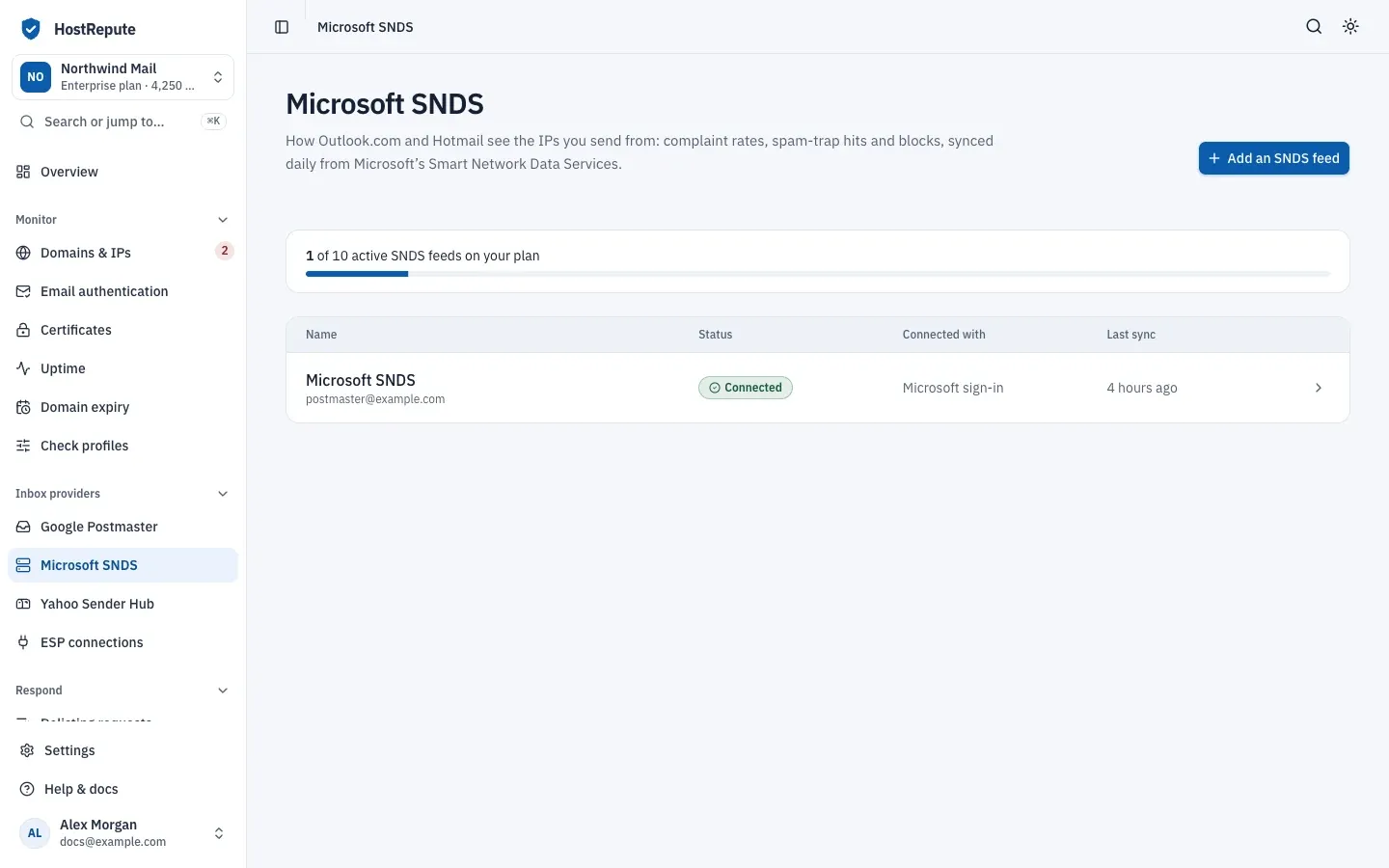
Open Inbox providers, then Microsoft SNDS and choose Add an SNDS feed.
-
Give the feed a Name, for example “Primary IP range”, and choose Add feed. HostRepute opens the feed’s page, which reads Connect the Microsoft account that has SNDS access.
-
Choose Connect to Microsoft. The Connect to Microsoft SNDS dialog asks How to connect. Both methods read the same data; pick one and follow its tab below.
The recommended method. It stays connected, with nothing to renew.
-
Choose Microsoft sign-in, then Sign in with Microsoft. Microsoft opens in a new tab. Sign in with the Microsoft account that has SNDS access and approve the access request.
-
Copy the address of the page that won’t load. After you approve, Microsoft sends that tab to
http://localhost, and the browser says the site can’t be reached. That’s expected: the sign-in code is in the address bar. Copy the whole address, which starts withhttp://localhost/?code=. Closed the tab too early? Choose Open the Microsoft tab again. -
Paste it here: paste the address into Address from the Microsoft tab and choose Connect. The code expires after a few minutes, so paste it soon. HostRepute connects the feed and starts the first sync.
Two links from the SNDS portal that need no sign-in. They expire, so you renew them every 30 days.
-
Choose Data Access links.
-
In the SNDS portal, open Automated Data Access, turn it on and copy the two links it shows. SNDS describes this access as meant for automated systems, with the same data as its CSV export (SNDS FAQ, checked October 2026).
-
Paste the Daily Data Export URL into Daily data link and the Current IP Status URL into IP status link. Both must be the
https://substrate.office.com/…addresses SNDS gives you. -
Optionally choose Test the links first, then choose Save and start syncing.
HostRepute counts 30 days from when you save the links. In their last week, the feed’s page shows a warning; once they expire, syncing stops until you paste new links or switch to Microsoft sign-in.
Read the results
Section titled “Read the results”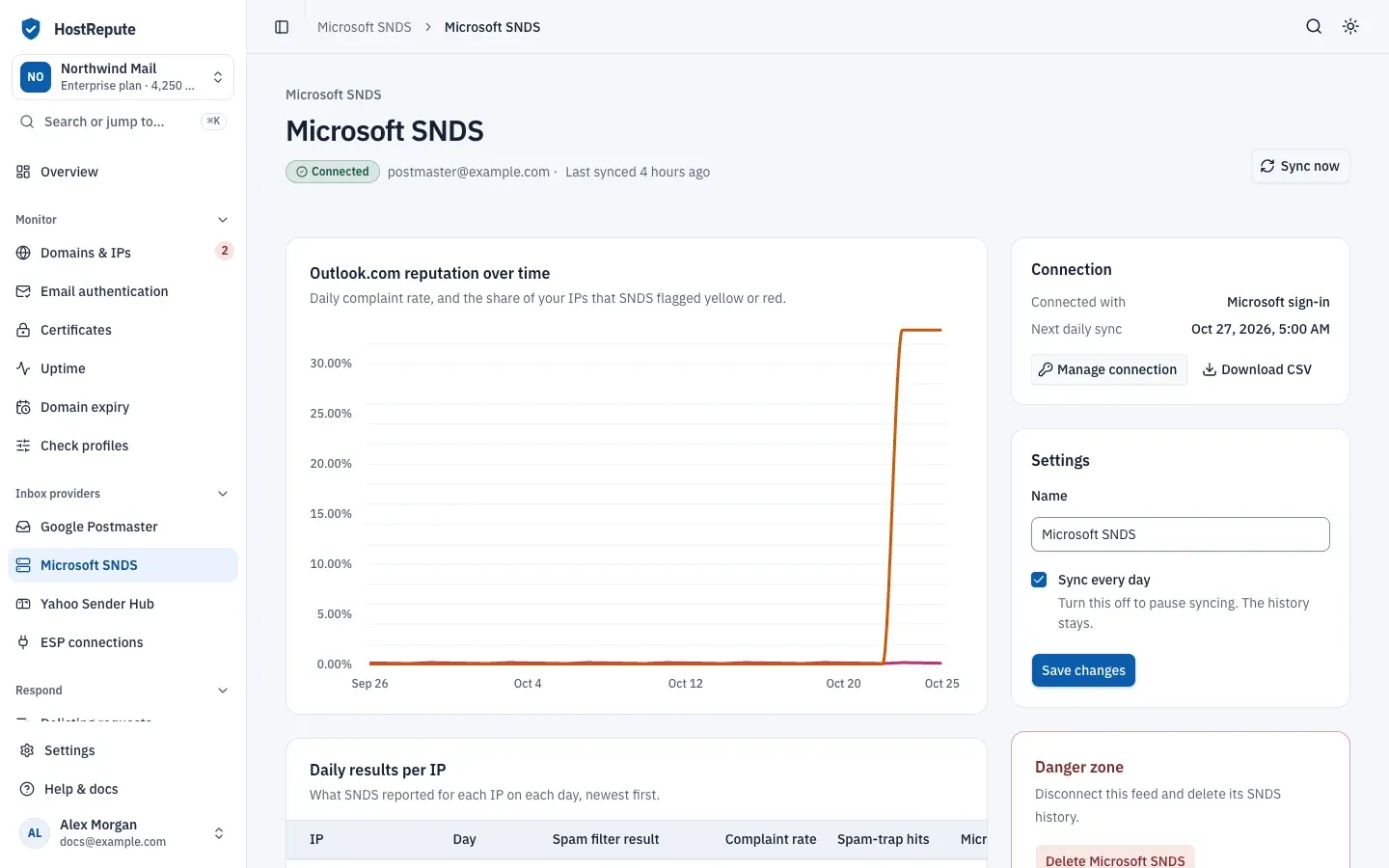
The feed’s page has three parts:
- Outlook.com reputation over time: the daily complaint rate, and the share of your IPs that SNDS flagged yellow or red.
- Daily results per IP: for each IP and day, the Spam filter result, the Complaint rate, the Spam-trap hits and Microsoft’s note.
- Blocks and other IP problems: IPs or ranges Microsoft blocked, junked or flagged as bots, when each problem was found and when it was resolved.
The spam filter result summarizes Microsoft’s spam verdicts on the IP’s mail that day: green below 10%, yellow between 10% and 90%, red above 90%. The complaint rate is the number of complaints divided by the message recipients. SNDS may have no data for an IP that sent fewer than 100 messages that day, and it builds each day’s data starting around midnight Pacific time (SNDS FAQ, checked October 2026). A spam trap is an address kept to catch senders with poor list practices, so any hit is worth a look.
| Status | Meaning |
|---|---|
| Mostly clean (green) | Microsoft's spam filter result for the IP's mail that day: mostly clean. |
| Mixed (yellow) | Microsoft's filters treated part of the IP's mail as spam that day. A change from green to yellow sends a filter result alert and lowers the Microsoft SNDS part of the reputation score. |
| Mostly spam (red) | Microsoft's filters treated most of the IP's mail as spam that day. A change to red from any other result sends a filter result alert and lowers the score more than yellow. |
| No result | SNDS gave no filter result for that IP and day. |
| Blocked | Microsoft reported it blocks mail from this IP or range. Each new problem alerts your channels and, while it isn't resolved, lowers the Microsoft SNDS part of the reputation score; Resolved shows when it cleared. |
| Junked | Microsoft reported it sends this IP's mail to junk. |
| Bot | Microsoft's status for the IP reports bot activity. It weighs on the score as heavily as a block. |
| Unknown | Microsoft reported a problem HostRepute couldn't classify as blocked, junked or bot. |
Alerts and the reputation score
Section titled “Alerts and the reputation score”After each sync, HostRepute alerts your alert channels when an IP’s filter result gets worse
(green to yellow, or anything to red), its complaint rate is above 0.3%, it hit a spam trap, or Microsoft reports a new
block or other IP problem. Every active channel gets the alert unless its delivery hours are
closed at that moment, and the alert isn’t kept for later. If the team has no active alert channel, the team Owner gets
it by email. A webhook channel receives these alerts as the alert.reputation_issue event; read
receive webhooks.
For an IP in Domains & IPs, SNDS data counts for 10 of the 100 points of its reputation score. The three Microsoft SNDS premium sources in Blocklists HostRepute checks also use the data your feeds sync, for your team only.
Syncing, history and CSV export
Section titled “Syncing, history and CSV export”- HostRepute syncs every active feed once a day at 09:00 UTC. Connection on the feed’s page shows how it’s connected and the next daily sync.
- Sync now starts a sync at once.
- Manage connection opens the connection dialog, where Test the connection checks the stored sign-in or links with Microsoft. From there you can also switch methods: your current connection keeps syncing until the new one is set up.
- Turning off Sync every day pauses the feed. The history stays.
- SNDS data is kept for 90 days.
- Download CSV exports the stored daily results: IP, day, activity period, filter result, complaint rate, trap hits, RCPT and DATA commands, message recipients, sample HELO and MAIL FROM, and Microsoft’s comments.
To stop reading SNDS without losing history, choose Disconnect in the connection dialog: HostRepute forgets the stored sign-in or links. To delete the feed and its history, use Danger zone on its page. Neither changes anything in your SNDS account.
Check that it worked
Section titled “Check that it worked”- The feed shows Connected on Microsoft SNDS, with how it’s connected and a recent Last sync.
- Daily results per IP lists your IPs after the first sync. Microsoft reports each day’s data the next day, so a new feed can stay empty until then.
| Status | Meaning |
|---|---|
| Connected | Google Postmaster: a Google account is connected and the last sync didn't fail. Microsoft SNDS: a Microsoft sign-in or Data Access links are set up and the last sync didn't fail. |
| Syncing | A sync with Google or Microsoft is running now. |
| Needs attention | The stored sign-in stopped working and you need to reconnect, or the last sync failed. For Google Postmaster it also shows when only some domains synced. |
| Not connected | No Google account is connected yet (Google Postmaster), or no Microsoft sign-in or Data Access links are set (Microsoft SNDS), so nothing syncs. |
| Paused | Connected, but turned off, so nothing new is read until you turn it back on. |
Troubleshooting
Section titled “Troubleshooting”- Add an SNDS feed is missing or greyed out. Missing means your role can’t add feeds: ask a member with the Developer role or higher. Greyed out means all your plan’s feed slots are in use: pause another feed, or move to a bigger plan.
- “No authorization code was found.” Paste the full address from the Microsoft tab, starting with
http://localhost/?code=, not the page title or an error message. - “The Microsoft sign-in session expired” or the code is too late. The sign-in has to finish within a few minutes. Choose Sign in with Microsoft again and paste the new address right away.
- “… is not a recognized Microsoft SNDS endpoint” or “… does not look like the correct SNDS Automated Data Access link.” Paste the two links from the Automated Data Access page exactly as SNDS shows them, each into its own field.
- Your Data Access links expire soon, or have expired. Create new links in the SNDS portal and paste them under Manage connection, or switch to Microsoft sign-in, which doesn’t expire.
- Reconnect to keep syncing. Microsoft stopped accepting the stored sign-in. Reconnect with the account that has SNDS access.
- “This SNDS sync would monitor … IPs, which exceeds your plan limit of … IPs.” Your feeds report on more IPs than your plan allows, so the sync stopped. Remove IPs from the Microsoft account’s SNDS access, or move to a bigger plan.
- No daily results yet. Microsoft hasn’t reported a day yet, or your IPs send too little mail for SNDS to report. Sync again the next day.
- Data stops for IPs you used to see. Your SNDS access to them may have expired. Reattest it in the SNDS portal.
- A feed shows Paused although you didn’t pause it. Once a day, HostRepute pauses feeds above the plan’s limit, keeping the oldest ones syncing.