

Your profile and account
Your profile holds the account settings that belong to you rather than to a team: your name, email address, time zone and photo. They apply in every team you belong to. The same part of Settings is where you delete your account.
Before you begin
Section titled “Before you begin”- No role is needed. Every member can change their own profile.
- Access to the new mailbox. An email change takes effect only after you open a link sent to the new address.
- A password, to delete your account. If you sign in only with Google, GitHub, Yahoo or Microsoft, or with single sign-on, set a password first in sign-in and security.
Change your name, time zone or photo
Section titled “Change your name, time zone or photo”-
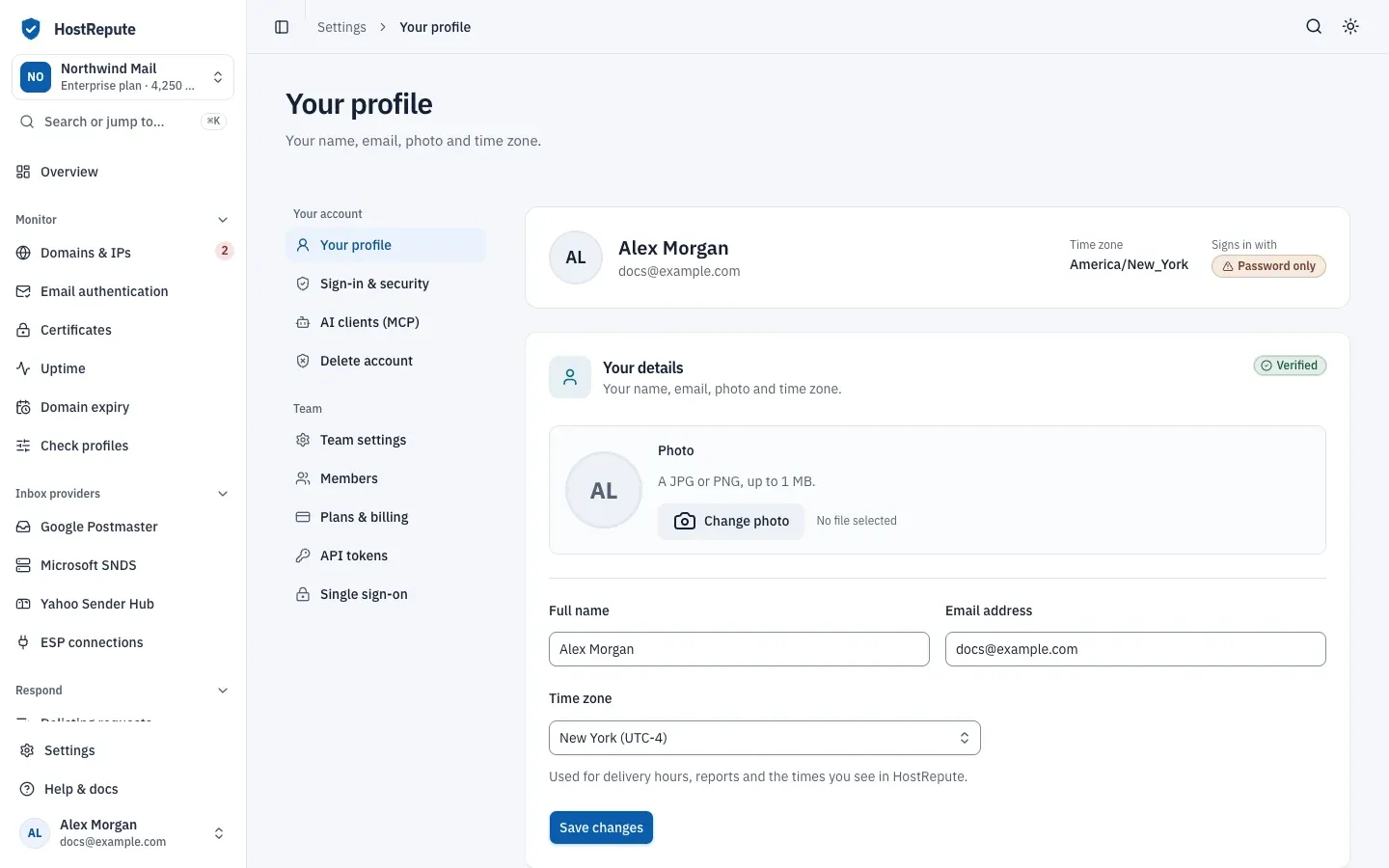
Open the account menu, your name at the bottom of the sidebar, and choose Your profile. Or open Settings, then Your profile.
-
Under Your details, change Full name or pick a Time zone. Type in the list to search it.
-
To change the Photo, choose Change photo and pick a JPG or PNG of up to 1 MB and at most 2,048 × 2,048 pixels. The size in pixels is checked when you save.
-
Choose Save changes. The page says “Profile updated.”
Remove photo deletes your photo straight away, without Save changes.
HostRepute sets your time zone from your browser when you sign up. Each team you create starts with the delivery hours “Default Contacts” in your time zone. Delivery hours and scheduled reports each keep their own time zone, which you change on them.
Change your email address
Section titled “Change your email address”-
On Your profile, enter the new Email address and choose Save changes.
-
HostRepute emails a confirmation link to the new address, and the page shows Confirm your new email address. Until you confirm, you keep signing in and getting email at your current address.
-
Open the link within 60 minutes, in a browser where you’re signed in to HostRepute. The page says “Your new email address has been confirmed.”
To get a new link, choose Resend link. To keep your current address, choose Cancel change.
Delete your account
Section titled “Delete your account”You can’t delete your account while a team you own still has a subscription. Cancel each one in Plans & billing and wait until it ends: a cancelled plan stays active until the end of its billing period, and so does the block.
-
Open Settings, then Delete account.
-
Under Delete your account, choose Delete account.
-
Enter Your password and choose Delete my account. Keep my account closes the dialog.
Check that it worked
Section titled “Check that it worked”- Your new name and photo show in the account menu at the bottom of the sidebar.
- After an email change, the confirmation notice is gone and Email address shows the new address.
- After you delete your account, you’re signed out.
Troubleshooting
Section titled “Troubleshooting”- “The email has already been taken.” Another HostRepute account uses that address. Use another one.
- “Your organization requires single sign-on, so your email must stay on a verified company domain.” A team requires single sign-on for your email’s domain. Pick an address on one of its verified domains, or ask the team’s Owner. Read set up single sign-on.
- “Please wait … seconds before requesting another email confirmation link.” You asked for several links in a minute. Wait for the time it gives, then choose Resend link.
- The confirmation link doesn’t work. It’s more than 60 minutes old, or you opened it while signed in to another account. Sign in to your account and choose Resend link.
- “That email address is no longer available. Please choose a different one.” Someone else started using the address before you confirmed. Enter another one.
- The photo isn’t saved. It isn’t a JPG or PNG, it’s over 1 MB, or it’s wider or taller than 2,048 pixels.
- Delete account is greyed out. The page says You confirm this with your password, and you sign in without one. Choose Set a password first.
- “Cancel active or pending subscriptions for teams you own before deleting your account.” A team you own still has a subscription, including one whose cancellation is scheduled but whose billing period hasn’t ended.
- “The password is incorrect.” Enter the password you sign in with.
Related
Section titled “Related”- Sign-in and security covers passwords, two-factor authentication and passkeys.
- Teams and team settings covers team names, avatars and deleting a single team.
- Plans, trial and billing covers cancelling a subscription.
- Choose when alerts are delivered explains delivery hours and their time zone.