

Check SPF, DMARC and other email authentication
Email authentication works as an SPF DKIM DMARC checker for your domains and IPs, with one exception: it reads SPF (the servers allowed to send for a domain), DMARC (what receivers do with mail that fails) and the related DNS records receivers look at, but not DKIM. This guide covers running a check once, checking with every scan, and reading the results.
Before you begin
Section titled “Before you begin”- The Developer role or higher to run a check. Every member can read the results.
- Credits for a one-off check. Each one uses 1 credit. Checks that run with every scan use none.
- For checks with every scan: a plan or the trial and a check profile with email authentication turned on. The plan also sets how long results are kept:
| Plan | Check profiles with email authentication | Results kept |
|---|---|---|
| Professional | 5 | 90 days |
| Business | 20 | 365 days |
| Enterprise | 75 | 365 days |
What HostRepute checks
Section titled “What HostRepute checks”| Check | Applies to | What it checks |
|---|---|---|
| Reverse DNS | IP addresses | Checks that the IP address has a reverse DNS (PTR) record naming a host. Many mail servers refuse mail from IP addresses without one. |
| Forward-confirmed Reverse DNS | IP addresses | Checks that the hostname in the PTR record points back to the same IP address. Receivers use this round trip to trust that the name really belongs to the sender. |
| Generic PTR Pattern | IP addresses | Checks that the PTR hostname doesn’t look like a home or dynamic connection, such as one containing “dsl” or the IP address spelled out. Generic names make mail look like it comes from a compromised computer. |
| PTR Hostname Format | IP addresses | Checks that the PTR record holds a complete hostname with a domain, which mail servers expect. |
| MX Health | Domains | Checks that the domain publishes MX records saying which servers accept its mail. Without them, replies and bounces can’t be delivered and some receivers distrust the domain. |
| SPF Record | Domains | Checks that the domain has exactly one SPF record. SPF lists the servers allowed to send its mail, and two or more records break it. |
| SPF Strict Policy | Domains | Checks that the SPF record ends with -all, so mail from servers that aren’t listed fails SPF. A softer ~all ending only marks that mail as suspicious. |
| SPF Lookup Limit | Domains | Checks that SPF stays within 10 DNS lookups (each include, a, mx, ptr, exists and redirect counts). Past that, SPF fails for every message. |
| DMARC Record | Domains | Checks that the domain has a DMARC record. DMARC tells receivers what to do with mail whose SPF and DKIM don’t match the From domain, and where to send reports. |
| DMARC Strict Policy | Domains | Checks that the DMARC policy is quarantine or reject, so mail that fails is held or refused. A p=none policy only reports; it doesn’t stop anyone from sending mail that pretends to be you. |
| MTA-STS Policy | Domains | Checks for an MTA-STS record, which tells other mail servers to deliver to you only over encrypted, verified connections. |
| TLS-RPT Record | Domains | Checks for a TLS-RPT record, which asks other mail servers to report to you when they can’t connect securely. |
| BIMI Record | Domains | Checks for a BIMI record, which lets inboxes that support it show your logo next to your mail. It only works once DMARC is set to quarantine or reject. |
A check runs only on the kind of address it’s for: on a domain, the IP checks show as not applying, and the other way round. DKIM isn’t checked because its record sits under a selector name that only your mail provider knows; your provider’s dashboard can confirm it.
Run a one-off check
Section titled “Run a one-off check”-
Open Email authentication and choose Check a domain or IP.
-
Enter the Domain or IP address, for example
example.comor your mail server’s IP address. The field suggests the domains and IPs in your team, but any domain or IP works. -
Under What to check, pick A check profile’s checks and a profile to run the same checks it runs with every scan, or Checks I choose to tick them yourself. All the checks start ticked; untick the ones you don’t need.
-
Read the cost under the form, then choose Run check. The button names the cost, and it’s greyed out when the team doesn’t have enough credits.
-
The result opens as soon as the check is done. If the check can’t run, its credit is refunded.
Check with every scan
Section titled “Check with every scan”-
Open the profile in Check profiles.
-
Tick Check email authentication with every scan. Every check runs, unless you choose Choose specific checks and tick the ones you want.
-
Choose Save changes.
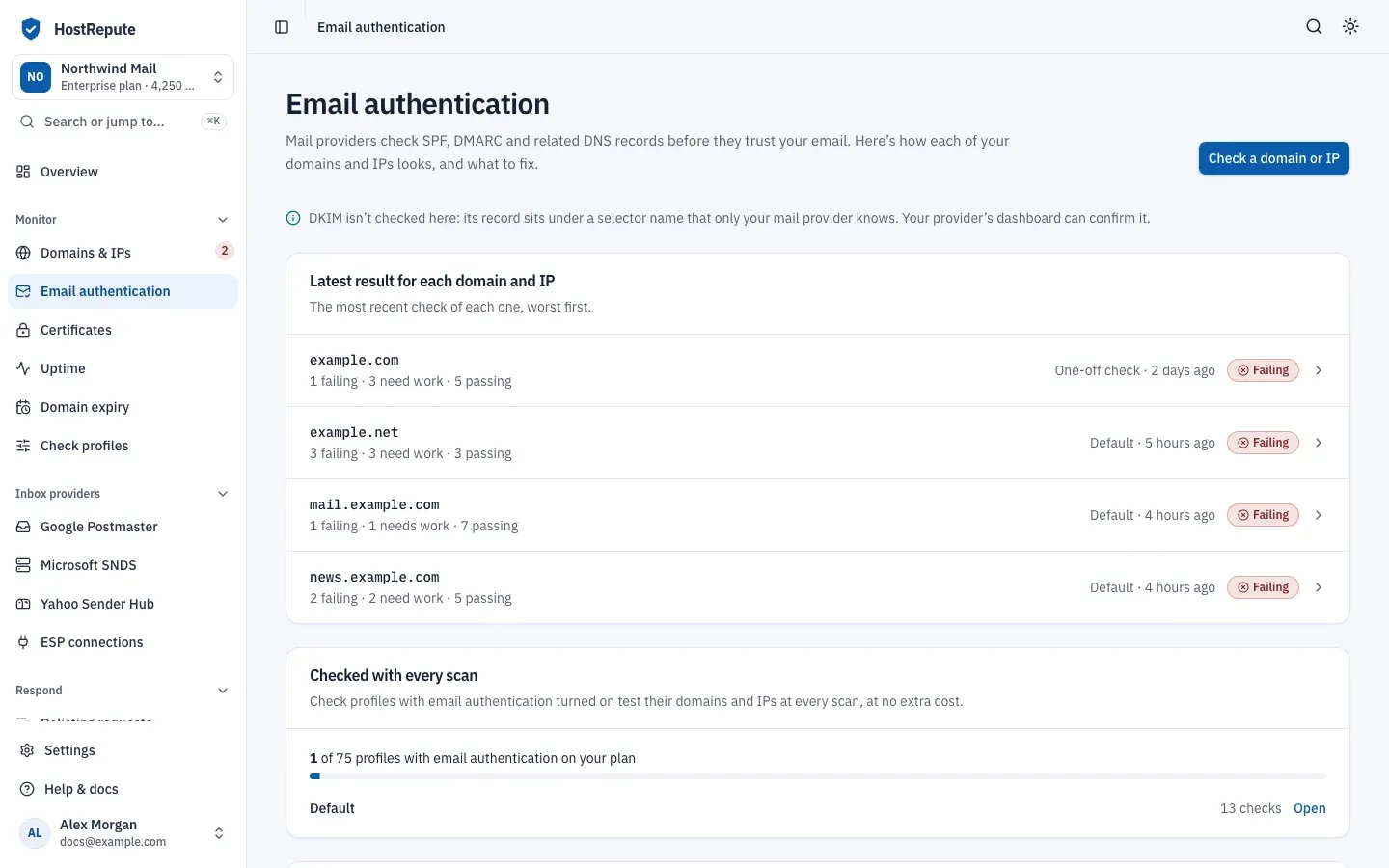
From then on, after each scheduled blocklist scan of a domain or IP that uses the profile finishes, its email authentication checks run too, without credits. They don’t run after a manual scan, or after a scheduled scan that failed. Checked with every scan on the Email authentication page lists the profiles that have it on, with your plan’s meter.
Read the results
Section titled “Read the results”Open a result from Latest result for each domain and IP or from History.
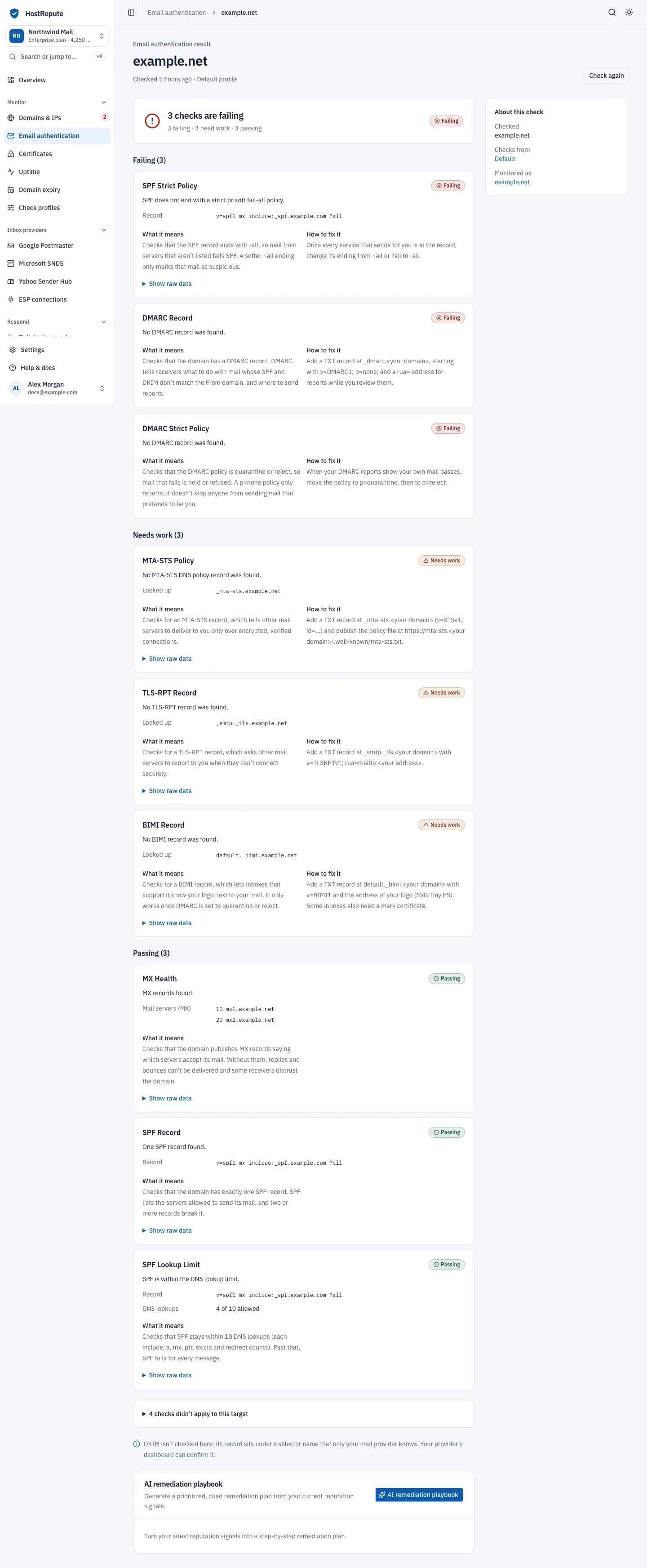
- The verdict at the top counts the failing checks, the ones that need work and the passing ones.
- Each check sits under Failing, Needs work or Passing, with what HostRepute found, the record or lookup behind it, What it means and, unless it passed, How to fix it. Show raw data shows the raw lookup.
- Checks that didn’t apply to this domain or IP are folded away under a line that counts them.
- About this check says what was checked, where the checks came from (a profile, or Chosen by hand) and, when the domain or IP is in your team, where it’s Monitored as.
- Check again runs the same checks again, for the same cost as a one-off check.
Each check, and each run as a whole, ends with one of these results:
| Status | Meaning |
|---|---|
| Passing | This check found what it looks for. |
| Needs work | This check found something to improve, for example a PTR hostname that looks generic or isn't fully qualified. A run with such a check and no failing one reads Needs work overall; each one takes 8 points off the email authentication part of the reputation score. |
| Failing | This check found a problem, for example no SPF record, more than one SPF record or no MX record. Any failing check makes the whole run Failing; each one takes 18 points off the email authentication part of the reputation score. |
| Not checked | The check doesn't apply to the target, for example a domain-only check on an IP, or it needed a PTR record that isn't there. A run where nothing applied reads Not checked overall. |
| All good | Overall result of a run where at least one check passed and none failed or needed work. |
The latest result also feeds the reputation score of the domain or IP, and its page shows a summary in its Email authentication card.
Find past results
Section titled “Find past results”- Latest result for each domain and IP shows the most recent check of each domain or IP, worst first.
- History lists every check your plan keeps. Filter it by Domain or IP, Result, Check profile, From and To, then choose Show results. One-off checks show as One-off check under Checks from.
Check that it worked
Section titled “Check that it worked”- A one-off check opens its result page, and the domain or IP appears in Latest result for each domain and IP.
- After the next scheduled scan, a domain or IP in a profile with email authentication on shows a new result whose Checks from is that profile.
Troubleshooting
Section titled “Troubleshooting”- Nothing checked yet. No check has run yet. Run a one-off check, or turn on email authentication in a check profile.
- Run check is greyed out, with “which isn’t enough”. The team doesn’t have enough credits. The team Owner buys them in Settings, then Plans & billing.
- A check profile’s checks can’t be picked: “No profile has email authentication turned on yet.” Pick Checks I choose, or turn it on in a check profile first.
- Every check reads Not checked, or “Nothing applied to this target”. The checks you ran don’t apply to this kind of address, for example only IP checks on a domain. Run the domain checks on domains and the IP checks on IPs.
- There’s no DKIM check. HostRepute doesn’t check DKIM; see What HostRepute checks.
- Scheduled results stopped. The domain or IP is paused, its scheduled scans fail, its profile has email authentication off, or the team has no plan. A team with more profiles with email authentication than its plan allows has it turned off in the extra ones once a day.
- An older result is gone. Results older than your plan keeps are no longer shown, and their links stop working.
- A check is failing. Follow How to fix it on the result, change the record at your DNS provider, then choose Check again or wait for the next scheduled scan.