

Connect your email service provider
An ESP connection brings Mailchimp deliverability stats into HostRepute: how many emails your recent campaigns sent, how many bounced, how many recipients marked them as spam, and how often they were opened, next to your blocklist and inbox provider results. HostRepute reads them from Mailchimp’s campaign reports once a day with an API key you create, and never sends mail or changes your Mailchimp account.
Before you begin
Section titled “Before you begin”- A Mailchimp API key. A Mailchimp user with Manager permissions can create one: click your profile icon, choose Profile, open the Extras menu, choose API keys, then Create A Key. Name it after HostRepute, choose Generate Key and copy it right away, because Mailchimp shows the full key only once (Mailchimp: About API keys, checked October 2026).
- The Developer role or higher in HostRepute to connect a provider and change its settings. A Viewer can read the reports.
- A plan or the trial. Your plan sets how many ESP connections can sync at once; see Plans and limits.
Connect Mailchimp
Section titled “Connect Mailchimp”-
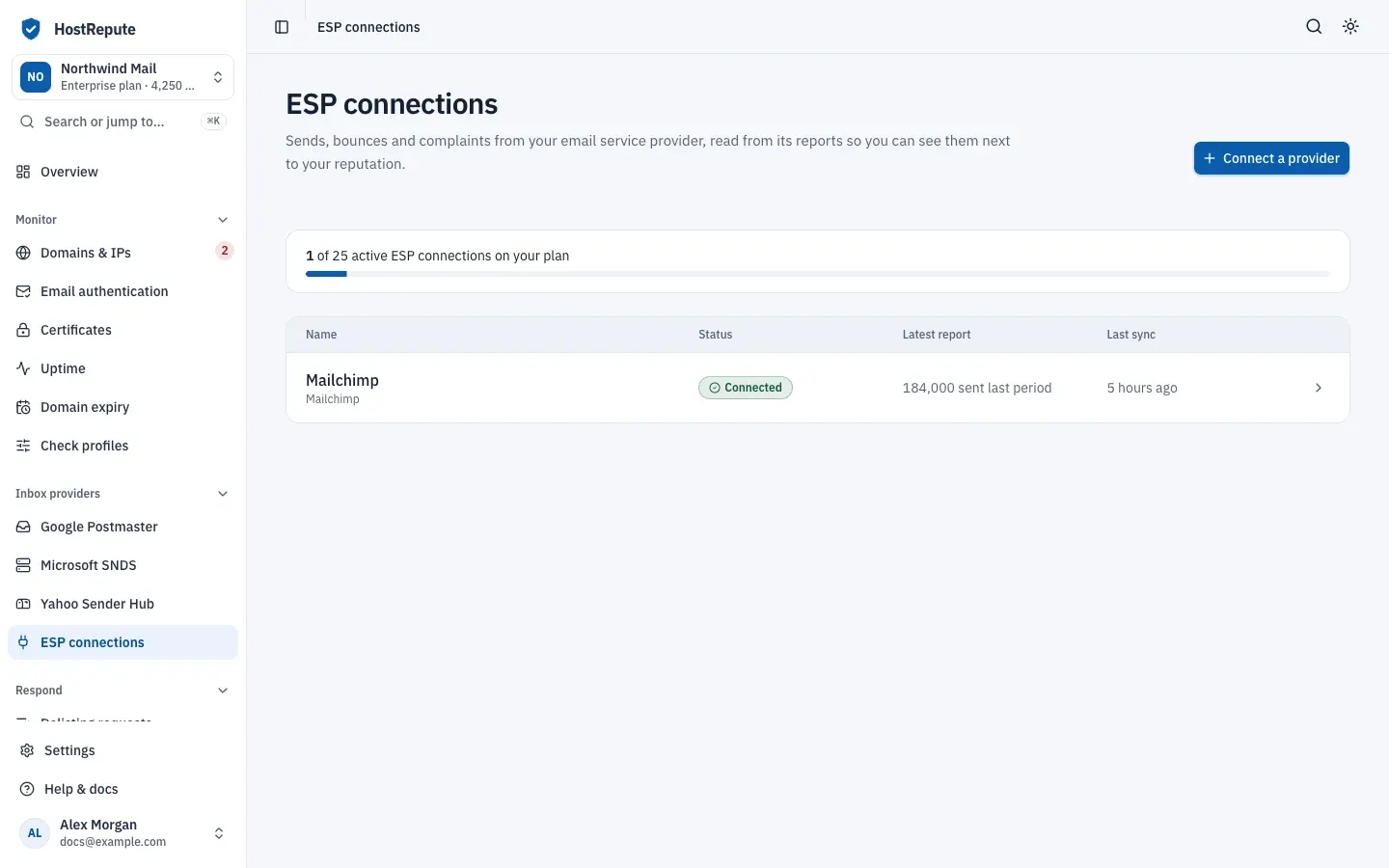
Open Inbox providers, then ESP connections and choose Connect a provider.
-
In the dialog, set Provider to Mailchimp, then fill in:
- Name, for example “Marketing Mailchimp”.
- API key: the key you created in Mailchimp.
- Data center (optional): leave it empty. HostRepute reads it from the end of the key, the
us21in…-us21. Fill it in only if your key doesn’t end that way.
-
Leave Start syncing right away on to sync now. Turn it off to save the connection paused: only active connections count toward your plan.
-
Choose Connect. HostRepute opens the connection’s page and starts the first sync.
Read the reports
Section titled “Read the reports”Each sync adds up Mailchimp’s reports for your 100 most recent campaigns, newest first, into one report:
| Card | What it adds up |
|---|---|
| Sent | The emails each campaign sent. |
| Bounced | Hard bounces, soft bounces and syntax-error bounces. |
| Marked as spam | The abuse reports, that is, recipients who marked a campaign as spam. |
| Opened | Every open, so one person opening a campaign twice counts twice. |
The field meanings are Mailchimp’s (Mailchimp: List campaign reports, checked October 2026). The report’s period runs from the earliest to the latest send time of those campaigns. Latest report shows the newest report, with bounces, spam reports and opens as a share of the emails sent. Because opens count repeats, that share can pass 100%. Report history lists one row per reporting period, the 30 most recent, newest first.
These numbers are for reading next to your other results. They don’t send alerts and don’t change the reputation score.
Syncing and settings
Section titled “Syncing and settings”- HostRepute syncs every active ESP connection once a day at 11:00 UTC. Sync now starts a sync at once.
- Under Settings, paste a New API key to replace the stored one (leave it empty to keep it), change the Data center, or turn off Keep syncing to pause the connection. Then choose Save changes.
- To remove the connection, use Danger zone on its page. HostRepute deletes the stored API key and all its reports; nothing changes in your Mailchimp account.
Check that it worked
Section titled “Check that it worked”- The connection shows Connected on ESP connections, with how many emails were sent in the latest period and a recent Last sync.
- Latest report on its page shows numbers instead of “No report yet”.
| Status | Meaning |
|---|---|
| Connected | The API key works and the last sync didn't fail. |
| Syncing | A sync with the provider is running now. |
| Needs attention | The last sync failed, which usually means the API key changed or lost access. Update the key, then sync again. |
| Paused | Keep syncing is off, so nothing new is read from the provider. Only active connections count toward your plan. |
Troubleshooting
Section titled “Troubleshooting”- Connect a provider is missing. Your role can’t connect providers. Ask a member with the Developer role or higher.
- “Your current plan cannot add more active ESP integrations. Save it as inactive or upgrade your plan.” All your plan’s active connections are in use. Turn off Start syncing right away to save it paused, pause another connection, or move to a bigger plan.
- The last sync didn’t work, with “Mailchimp rejected the API key”. The key was revoked, replaced or has expired. Create a new key in Mailchimp, paste it into New API key and choose Sync now.
- “Unable to determine the Mailchimp data center.” The key doesn’t end with its data center. Copy the key again
from Mailchimp, or enter the data center, such as
us21, under Data center. - Syncing is paused. Keep syncing is off. Turn it on in Settings to sync again.
- No reports yet. The first sync hasn’t finished, or the connection is paused. Choose Sync now, or turn on syncing first.
- You don’t see SendGrid, Brevo or ActiveCampaign. HostRepute does not support them yet; Mailchimp is the only provider offered.