

Send scheduled reports
A scheduled report is a blacklist report email that HostRepute sends every day, week or month: how many of your domains and IPs are listed now, which were newly listed and which were removed during the period. It covers all your domains and IPs or only the ones with a tag, goes to up to 20 email addresses that don’t need a HostRepute account, and links to a snapshot of the report that recipients can open for 90 days.
Before you begin
Section titled “Before you begin”- Room on your plan. Every plan and the 14-day trial include scheduled reports; the number you can keep differs by plan. Compare them in Plans and limits.
- The Developer role or higher to create, change, test and delete reports. Viewers see the reports and how they went, but not the email addresses.
- Tags, for a report about some domains and IPs. A report can cover one tag, for example a client’s domains. Add the tag on each domain or IP’s page first; Add and manage domains and IPs shows how.
Create a scheduled report
Section titled “Create a scheduled report”-
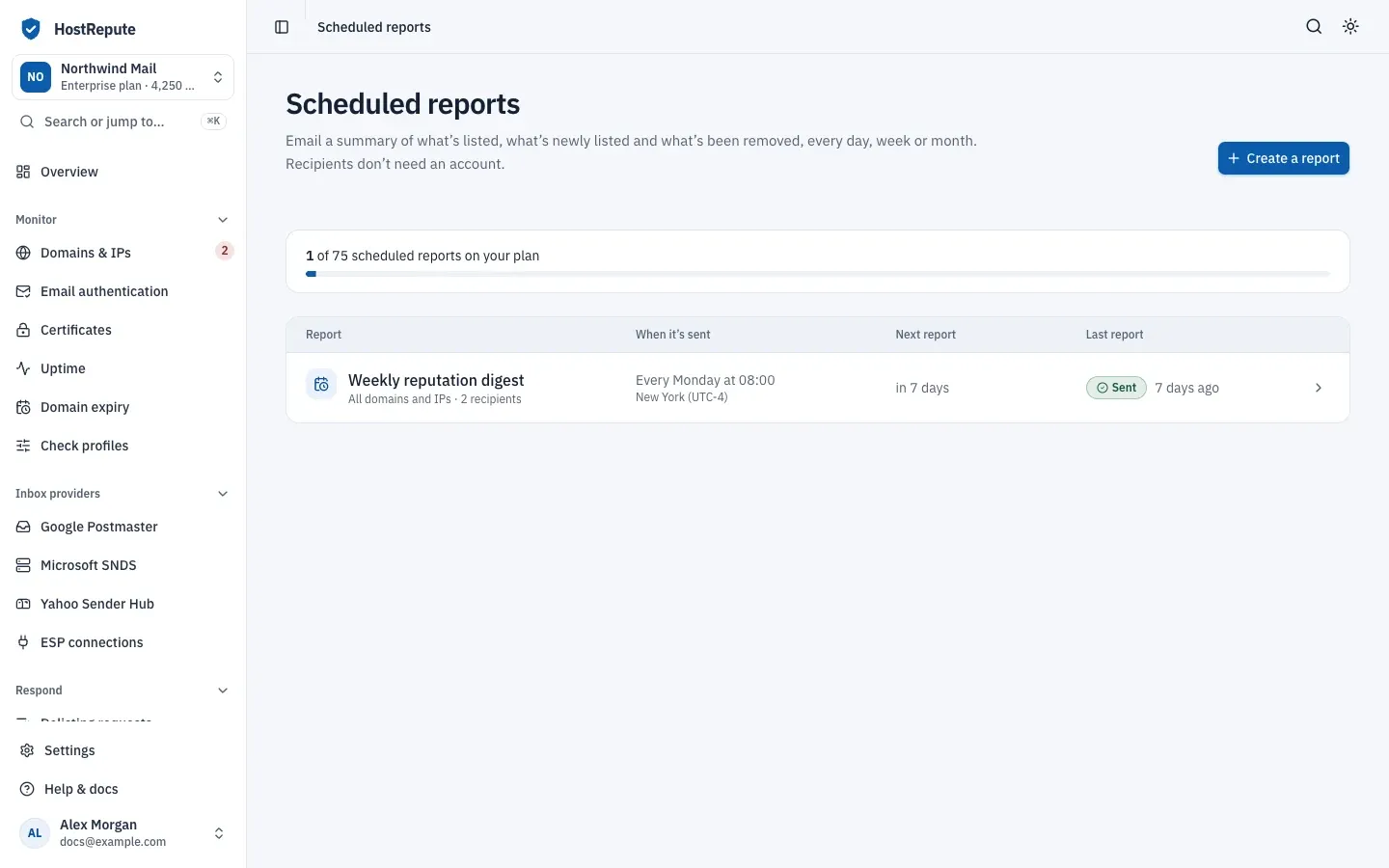
Open Alerts & sharing, then Scheduled reports and choose Create a report. The button is greyed out when your plan’s limit is reached.
-
Enter a Name. Only your team sees it.
-
Under What it covers, choose All domains and IPs, or Domains and IPs with a tag and pick the Tag. Paused domains and IPs aren’t in the report, whichever you choose.
-
Under When it’s sent, set How often to Every day, Every week or Every month, then the Day of the week or the Day of the month, the Time and the Timezone. The timezone starts as your browser’s. A monthly report set to a day that a month doesn’t have goes out on that month’s last day. The line under the fields repeats the schedule in words, for example “Every Monday at 09:00”.
-
Under Who gets it, enter an email address and choose Add another address for each further one. Each address can appear once.
-
Decide on the two switches:
- Only send when something changes is off at first. Turn it on to skip any period in which no domain or IP was listed on a blocklist or removed from one. Quiet periods then send nothing, so even the first report can be skipped; skipped reports still show in the history.
- Send this report is on. Turn it off to keep the report without sending it.
-
Choose Create report. The report’s page opens, and When it goes out shows the Next report.
| Setting | Default | How to change |
|---|---|---|
| Name | 120 characters | Fixed |
| Host tag | 50 characters | Fixed |
| Recipients | 1 to 20 email addresses, each used once | Set per report |
| Recipient email address | 255 characters | Fixed |
| Send day (monthly reports) | Day 1 to 31 of the month | Set per report |
| Test sends | 6 a minute per member | Fixed |
Reports go out within a few minutes of their time, and each one covers the day, week or month before it. Only scheduled scans count as a change: a manual scan that finds a new listing doesn’t put it in the report’s newly listed or removed lists.
What recipients get
Section titled “What recipients get”Each recipient gets an email whose subject names the frequency and the dates the report covers. It shows:
- how many domains and IPs the report covers, how many are clean, how many are listed now, how many were newly listed and how many were removed during the period, and their average reputation score;
- the domains and IPs newly listed and those removed, up to 10 of each;
- the blocklists with the most listings, and the listed domains and IPs that need attention;
- recommended next steps, and a button to the report snapshot.
The snapshot is a web page with the same report plus the latest scans. It shows your team’s name and logo, carries HostRepute branding (scheduled reports have no setting to hide it), and asks search engines not to index it. Anyone with the link can open it, without signing in, for 90 days after the report was sent. It never changes after it’s sent: it shows the data as it was when the report was built.
Send a test
Section titled “Send a test”-
On the report’s page, choose Send a test under Send a test. The button waits while the settings have unsaved changes or no email address.
-
Check the list of addresses in the dialog, then choose Send test.
A test goes to every saved address straight away. It covers the day, week or month up to now, and it’s sent even when nothing changed, whatever Only send when something changes says. You can test a paused report too. The card shows the result, usually within a minute, and History marks the delivery Test. A test doesn’t change Last sent.
Change, pause or delete a report
Section titled “Change, pause or delete a report”- Change it in Settings on the report’s page and choose Save changes. The next report follows the new schedule.
- Pause it by turning off Send this report and saving. The report shows Paused and nothing is sent; its settings and history are kept. Turn the switch back on to resume.
- Delete it with Delete report in Danger zone. No more reports are sent, its history is deleted and the links in every report it already sent stop working.
Read the delivery history
Section titled “Read the delivery history”History, at the bottom of the report’s page, lists every report sent, skipped or failed, newest first, ten to a page. Each entry shows the period it covered, its status, what it said (for example “1 listed now · 1 newly listed · 0 removed”) and, for a failed or partly sent report, the error.
| Status | Meaning |
|---|---|
| Sending | The report was built and is being emailed to its recipients. |
| Sent | Every recipient was sent the report. |
| Partly sent | Some recipients got it and some couldn't be emailed; the error lists the ones that failed. |
| Skipped: nothing changed | Only send when something changes is on and no domain or IP was listed or removed during the period, so nothing was sent. Test sends are never skipped. |
| Failed | No recipient could be emailed, or the report has no valid recipients. |
| Paused | The report is turned off, so no next report is scheduled. |
A sent report has Open report for its snapshot and says how long the link works. To stop anyone opening it, recipients included, choose Turn off link and confirm. That can’t be undone, and the emails already sent stay in their inboxes.
Check that it worked
Section titled “Check that it worked”- The list shows the report with its scope, its number of recipients, When it’s sent and Next report.
- After the first send time, Last report shows Sent, or Skipped: nothing changed when Only send when something changes is on and nothing happened.
- A test arrives in each recipient’s inbox and appears in History marked Test.
Troubleshooting
Section titled “Troubleshooting”- Create a report is greyed out. The team has as many reports as its plan allows. Delete one, or compare the plans in Plans and limits.
- “Your current plan does not allow this many active scheduled reports” when you save. You turned on a report while the plan’s limit of reports that send is already used. Pause or delete another report first.
- A report shows Paused, but nobody paused it. At its send time, HostRepute pauses a report that the plan no longer allows, for example after a downgrade or when the trial ended without a plan; the oldest reports keep sending up to the plan’s limit. Choosing a plan doesn’t turn them back on: turn on Send this report and save.
- The Tag list is empty and says “None of your domains and IPs has a tag yet”. Tag a domain or IP on its page, then create the report.
- Every report is Skipped: nothing changed. Only send when something changes is on and no scheduled scan found a new listing or a removal in those periods. Turn the switch off to get a report every period.
- One skipped entry covers several periods. When several send times passed without a report going out, HostRepute sends only the latest period and records the missed ones as a single skipped entry, so recipients don’t get a pile of old reports.
- Failed or Partly sent. The entry’s error lists the addresses that couldn’t be emailed. Check them for typos in Settings, save, then send a test.
- The test card says “That was a lot of tests in a row.” You sent more than 6 tests in a minute. Wait a minute, then try again.
- The test card says “No result yet.” The test is still queued. It appears in the history when it’s done; choose Check again to reload.
- Send a test is greyed out with “Save your changes first” or “Add an email address below first”. Save the settings, or add an address and save.
- “Nothing sent yet” in the history means the first send time hasn’t come yet. Send a test to see what recipients get.
- A recipient’s link shows an error page. The link is older than 90 days, was turned off, or the report was deleted. Open the latest report from the history and send its link again.
Related
Section titled “Related”- Share a scan report for a single scan
- Publish a status page
- Blocklist monitoring
- Add and manage domains and IPs, for tags
- Statuses and what they mean