

The Overview page
The Overview page is your domain reputation dashboard: it tells you whether any of your domains and IPs is on a blocklist, how your reputation score is moving, and what to set up next. This guide explains each part of it, the AI reputation summary, and the command palette that takes you anywhere in the portal.
Before you begin
Section titled “Before you begin”- A team. Every member can read the Overview, Viewers included.
- Something to watch. Until the team has a domain or IP, the Overview only offers to start setup. Owners and Admins are sent to Get started instead, until they finish setup or choose Finish later. The quickstart walks through it.
- For the AI summary: the Business or Enterprise plan, the Developer role or higher, and credits.
What the Overview shows
Section titled “What the Overview shows”The page changes with your team’s state:
| State | When | What you see |
|---|---|---|
| Nothing to watch yet | The team has no domains or IPs. | Let’s watch your first domain or IP with Start setup, or Add a domain or IP once setup has been finished. |
| First scan running | Domains or IPs are monitored, but no scan has finished yet. | A card that follows the first scan, the setup checklist and a short explanation of the reputation score. |
| Monitoring | At least one scan has finished. | Everything below: the status banner, the reputation score, the key numbers, recent domains and scans, the AI summary and, on the right, the checklist, signal coverage and email authentication. |
Members who can’t add domains and IPs see “Ask a team admin or developer to add the first domain or IP” instead of the setup button.
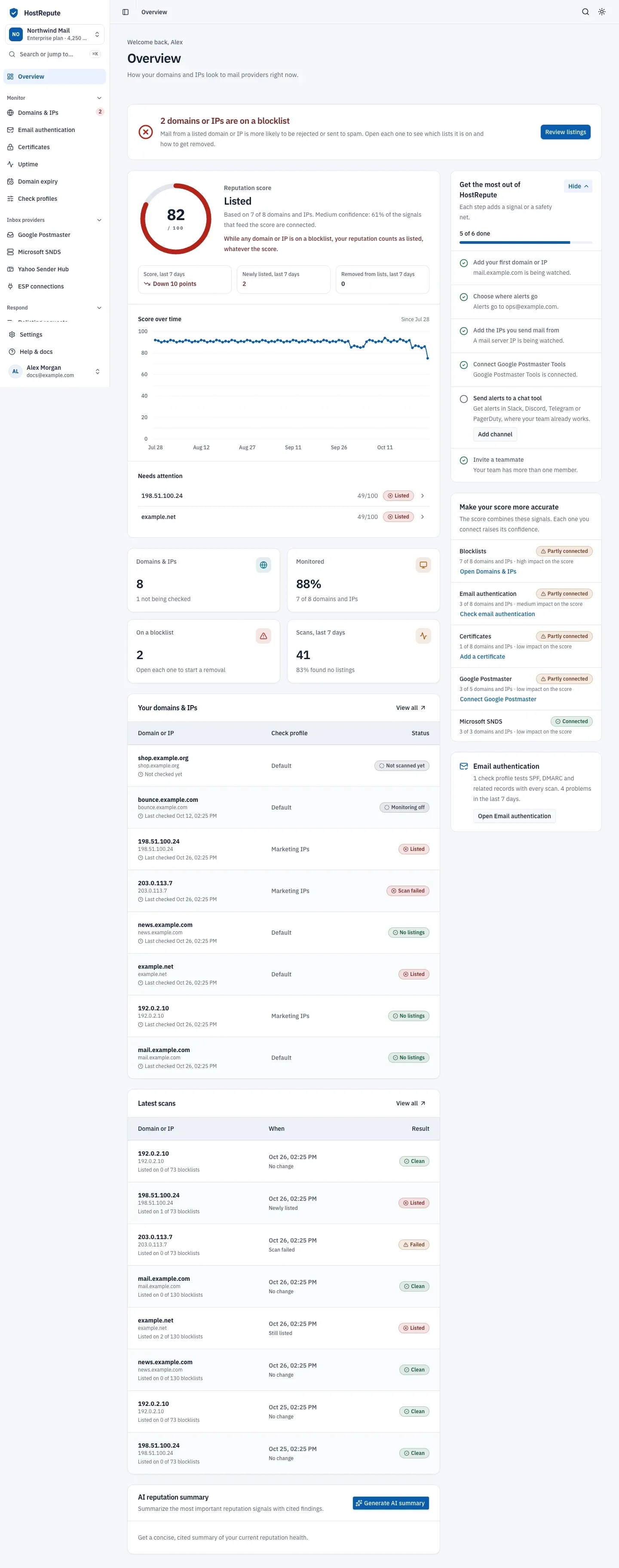
- The reputation score panel: the score, its trend and the domains and IPs that need attention.
- The four stat cards.
- The setup checklist.
Read the Overview
Section titled “Read the Overview”-
Read the status banner. It shows the first of these that applies:
- … domains or IPs are on a blocklist (red): at least one domain or IP is listed now. Review listings opens Domains & IPs, filtered to the listed ones. Blocklist monitoring explains what to do next.
- Monitoring is paused: none of your domains and IPs is being checked, so new listings go unnoticed. Manage domains & IPs takes you to the list.
- These results are getting old: the last finished scan is 2 or more days old.
- All clear: no listings across your monitored domains and IPs, with the time of the last finished scan.
-
Read the reputation score. The ring shows the team’s reputation score, the average of the scores of your domains and IPs, out of 100, with its label. Before any scan has finished it reads Waiting for results. While any domain or IP is listed, the label reads Listed whatever the average, and a red line under it says so. The line under the label says how many domains and IPs the score is based on and how confident it is: the share of the score’s signals that have data.
Under the ring, three numbers compare today with 7 days ago: Score, last 7 days (up or down so many points, or “Not enough history yet”), Newly listed, last 7 days and Removed from lists, last 7 days. Score over time charts the daily average for up to 90 days, and Needs attention lists up to 5 domains and IPs that are listed or score below 75, listed ones first.
-
Read the stat cards.
Card The number The line under it Domains & IPs Every domain and IP in the team. How many aren’t being checked. Monitored The share of them that is checked on schedule. “Every domain and IP”, or how many of how many. On a blocklist Domains and IPs listed now. “None right now”, or a reminder to open each one and start a removal. Scans, last 7 days Scans that finished in the last 7 days. The share that found no listings, or “No finished scans yet”. -
Check recent activity. Your domains & IPs shows the 8 domains and IPs added most recently, with their check profile and status (for example No listings, Listed, Not scanned yet or Monitoring off). Latest scans shows the 8 most recent scans: how many blocklists listed the domain or IP, what changed (Newly listed, Resolved, Still listed, No change or Scan failed) and the result. Open a scan to see every blocklist’s answer; View all opens Domains & IPs, described in Add and manage domains and IPs.
-
Check the right-hand column. Make your score more accurate lists the signals the score combines, highest impact first, with how many of your domains and IPs have data for each and a link to connect the rest. The Email authentication card says how many check profiles test SPF, DMARC and related records with every scan and how many problems they found in the last 7 days; read Check SPF, DMARC and other email authentication.
The score labels:
| Status | Meaning |
|---|---|
| Pending | There's no completed blocklist scan yet, so there's no number. The score card reads Waiting for results. |
| Listed | At least one blocklist lists it in the latest completed scan. The score is capped at 49 while it's listed; on the dashboard, any listed domain or IP makes the overall tier Listed even when the average is higher. |
| Critical | Below 50 with no listing: other signals, such as email authentication or certificates, pull the score down. |
| Review | 50 to 74 with no listing. |
| Good | 75 to 89 with no listing. |
| Excellent | 90 to 100 with no listing. |
And the signal coverage badges:
| Status | Meaning |
|---|---|
| Connected | Every domain and IP this signal applies to has data for it. Google Postmaster counts only domains, Microsoft SNDS only IPs. |
| Partly connected | Some of them have data for it, not all. |
| Not connected | None of them has data for it yet; the card links to where you connect it. |
How the reputation score works explains how each signal is weighted.
Work through the setup checklist
Section titled “Work through the setup checklist”Get the most out of HostRepute shows six steps, each adding a signal or a safety net. A step ticks itself off when HostRepute sees it done:
| Step | Done when |
|---|---|
| Add your first domain or IP | The team has a domain or IP. |
| Choose where alerts go | The team has an active alert channel. |
| Add the IPs you send mail from | At least one IP address is in Domains & IPs, so your mail servers are watched too. |
| Connect Google Postmaster Tools | A Google Postmaster Tools connection exists. |
| Send alerts to a chat tool | An active alert channel other than email exists, such as Slack or Telegram. |
| Invite a teammate | The team has a second member or a pending invitation. |
Open steps have a button to the right page when your role allows that step. Hide folds the list for this team in this browser, and Show opens it again. The checklist disappears once all six steps are done.
Get an AI reputation summary
Section titled “Get an AI reputation summary”- At the bottom of the Overview, find AI reputation summary.
- Choose Generate AI summary. HostRepute writes the summary from your current monitoring data in the background, and the card shows a loading state until it’s ready.
- Read the overall status, the headline and the findings, each with its severity.
A summary costs 5 credits, charged only when it is ready; one that fails costs nothing. Each summary is new: choose Regenerate for a fresh one. The card starts empty again the next time you open the Overview. AI requests, including the AI assistant’s chats and playbooks, are limited to 20 per minute per team. Credit costs lists every price in credits.
The summary is advisory and read-only: it explains what it sees in your data and suggests what to look at, and you decide what to change.
Jump anywhere with the command palette
Section titled “Jump anywhere with the command palette”Press ⌘ K on a Mac or Ctrl K on Windows and Linux, or choose Search or jump to… at the top of the sidebar. Type to filter, then press Enter. The same shortcut closes it.
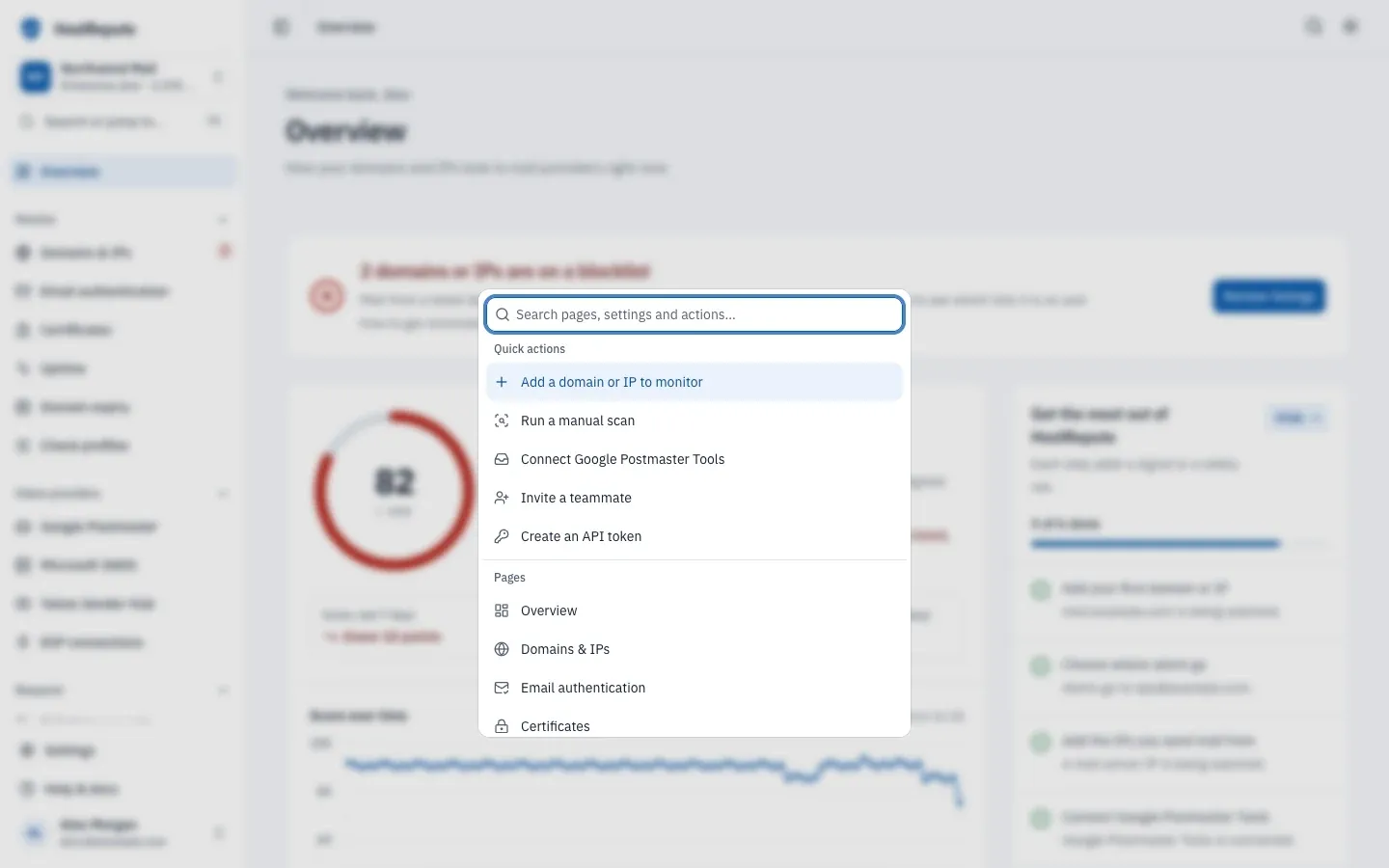
The palette groups what you can do:
- Quick actions: Add a domain or IP to monitor, Run a manual scan, Connect Google Postmaster Tools, Invite a teammate and Create an API token.
- Pages and Settings: every page in the sidebar and the settings.
- Switch team: your other teams.
- Appearance: light, dark or the system setting.
It lists only what your role can open, and it also matches related words: “theme” finds the appearance options and “gmail” finds Google Postmaster Tools.
On a phone
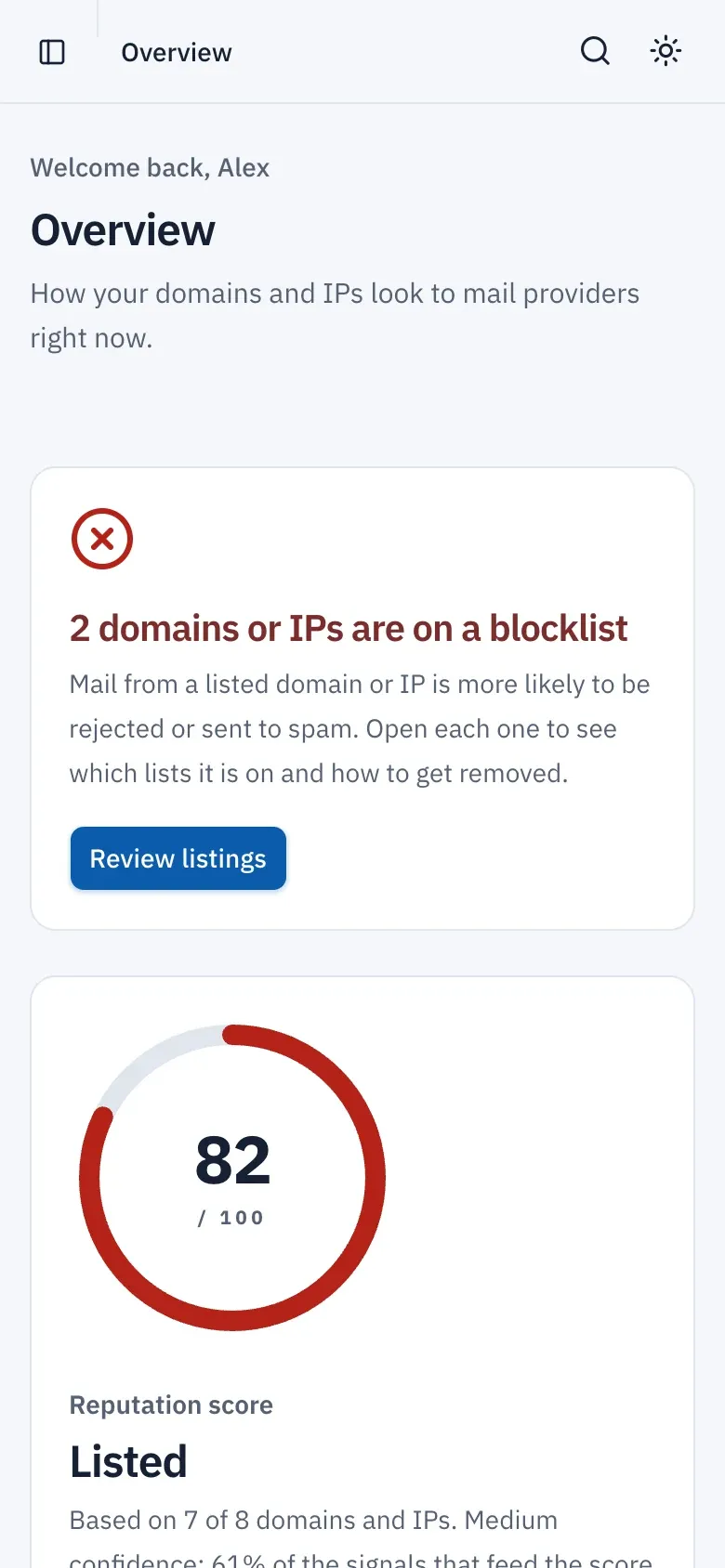
Section titled “On a phone”On a small screen the cards stack in one column, in the same order, and the checklist and the other right-hand cards follow the main column. The button at the top left opens the sidebar, and the magnifying glass at the top right opens the command palette.
Check that it worked
Section titled “Check that it worked”- The banner shows All clear or a listing count, not These results are getting old, and its last-checked time is recent.
- The top row of Latest scans is your newest scan.
- Scans, last 7 days shows a number, not “No finished scans in the last 7 days”.
Troubleshooting
Section titled “Troubleshooting”- You land on Get started instead of the Overview. The team has no domains or IPs and setup was neither finished nor put off. Finish setup, or choose Finish later.
- “Ask a team admin or developer to add the first domain or IP.” Your role (Viewer) can’t add domains and IPs. Ask a member with the Developer role or higher.
- The score reads Waiting for results. No scan has finished yet. The first one usually takes under a minute; the quickstart describes what the progress card shows.
- The label reads Listed although the number is high. Any listed domain or IP makes the team’s label Listed. The number is an average; each listed domain’s or IP’s own score is capped at 49.
- “Not enough history yet”. The 7-day comparison needs a score from 7 or more days ago.
- Monitoring is paused. None of your domains and IPs is checked on schedule. This also happens when a team was over its plan’s limits or had no plan: HostRepute paused the extra domains and IPs, and choosing a plan doesn’t turn them back on. Switch Keep checking it on again for each one.
- These results are getting old. No scan has finished for 2 days or more. Scheduled scans refresh the results; if the banner stays, contact support.
- The checklist is gone. All six steps are done, or you folded it: choose Show.
- “You do not have enough credits for this. Top up credits to continue.” Buy credits in Settings, then Plans & billing, which only the team Owner can open.
- “This feature is not available on your current plan.” The team isn’t on Business or Enterprise, or your role is Viewer: summaries need the Developer role or higher, and the message doesn’t say which applies. The Owner can change the plan.
- “This is taking longer than expected. Please try again.” The summary wasn’t ready within 3 minutes. Choose Try again.
- “No notable signals were found to report right now.” The summary found nothing worth reporting in your current data.
- The palette doesn’t list a page. Your role can’t open it: for example, only the Owner can open Plans & billing.