

Run a manual scan
A manual scan lets you check IP blacklist status, or a domain’s, right now instead of waiting for the next scheduled scan. It asks every blocklist in a check profile whether it lists the domain or IP, and shows the answer within about a minute. Use it after you fixed the cause of a listing, before you start sending from a new IP, or to look at a domain or IP you don’t monitor. Nothing is added to monitoring unless you choose to.
Before you begin
Section titled “Before you begin”- The Developer role or higher. Viewers can’t open Manual scan.
- 1 credit per scan. Scheduled scans of the domains and IPs you monitor are free. Credit costs lists every cost.
- A check profile with at least one blocklist. Without one, the page says “A scan needs a check profile with at least one blocklist. Set one up first.” and links to Open Check profiles. Read check profiles and blocklists.
- A public domain or IP. Private and local addresses are refused.
Scan a domain or IP
Section titled “Scan a domain or IP”-
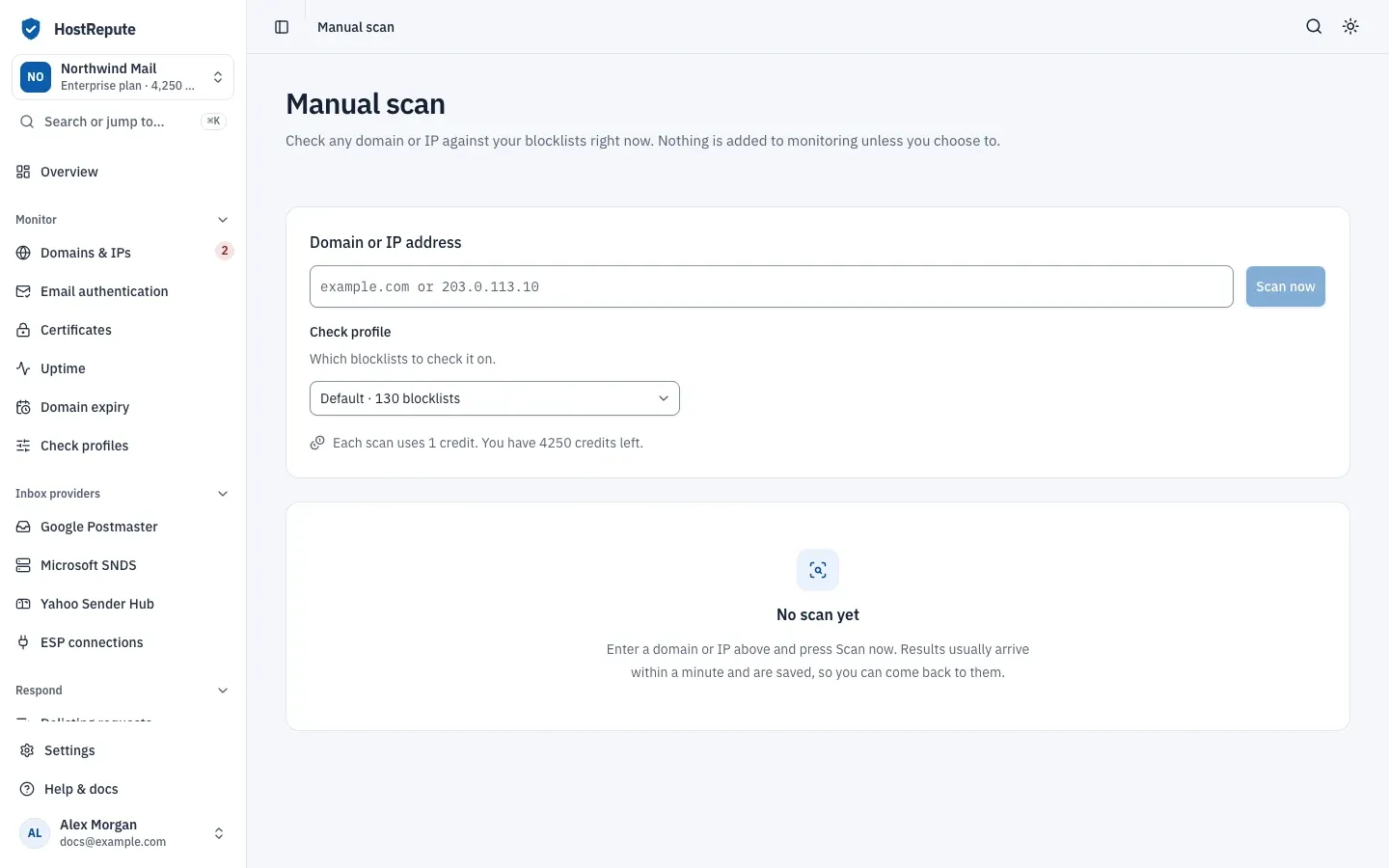
Open Respond, then Manual scan.
-
Enter the Domain or IP address, for example
example.comor203.0.113.10. The field suggests the domains and IPs your team already has. A pasted URL is cleaned up to its host name. -
Check the Check profile. With one profile, the page names it and offers Use another check profile; with several, pick one. Profiles without blocklists can’t be chosen.
-
Choose Scan now. The page shows each blocklist’s answer as it arrives.
You can run 10 manual scans per minute. A second scan of the same domain or IP while the first is still running opens the running one and uses no credit. To scan from your own scripts, start a blocklist check through the API, also for 1 credit.
Read the result
Section titled “Read the result”The heading says “Listed on” a number of blocklists, or “Not listed on any blocklist we checked”, and how many blocklists didn’t answer.
- Where it’s listed has one card per listing, with the list’s removal options. To ask a list to remove you, read get a listing removed. HostRepute never submits a removal request for you.
- Every blocklist checked shows each blocklist with one of these results:
| Status | Meaning |
|---|---|
| Listed | This blocklist answered and lists the domain or IP. The row shows how to ask for removal and the raw response. |
| Clean | This blocklist answered and doesn't list it. |
| Didn’t answer | The lookup failed, for example it timed out. It counts as neither listed nor clean and is left out of the blocklist score; a scan only fails when no blocklist answered. |
On this page, a blocklist that didn’t answer shows as Couldn’t check and one that answered without listing it as Not listed. Neither counts as a listing.
- Share these results creates a private link to the result: Create a link, then Copy link, and Turn off the link when you’re done. Share a scan report describes what the report shows and how long the link lasts.
- The scan is saved. Open the full scan record opens it in the scan history.
Keep watching it
Section titled “Keep watching it”When the domain or IP isn’t monitored yet, the result offers Monitor followed by its name. That adds it to Domains & IPs, or turns monitoring back on for a paused one, with this scan in its history. It needs room on your plan. A domain or IP you scanned but never monitored is kept as a temporary entry and removed 30 days after it was added. To set its name, tags and check profile, read add and manage domains and IPs.
When a scan fails
Section titled “When a scan fails”If no blocklist answers, the page says “The scan of” the domain or IP “didn’t finish”, and the credit is refunded automatically. If the scan can’t be started at all, the form says “We could not start the scan right now.” and the credit is refunded too. A failed scan is a warning, not a listing: it says nothing about your reputation. Try again in a moment.
Check that it worked
Section titled “Check that it worked”- The result shows how many blocklists were checked and when.
- Open the full scan record opens the saved scan.
- The team’s credit balance, shown under the form, went down by 1.
Troubleshooting
Section titled “Troubleshooting”- Scan now is greyed out. The field is empty, the team has fewer credits than a scan costs (the notice under the form says so), or no check profile has blocklists.
- The address must be a public IP address or domain name. You entered a private, local or reserved address, which blocklists can’t list.
- The scan is refused after several in a row. You can start 10 manual scans per minute. Wait a minute, then scan again.
- “This scan is taking longer than usual, so we stopped updating this page.” Choose Check the latest status to reload it, or Scan again.
- “Your plan can’t monitor more domains and IPs.” after Monitor. Remove a domain or IP you no longer need, or change your plan.
- Some blocklists show Couldn’t check. They didn’t answer in time. That doesn’t count as a listing; scan again later if you need their answer.
- A list still lists you right after you were removed. A blocklist’s answer for the same domain or IP is reused for up to an hour. Wait an hour, then scan again.